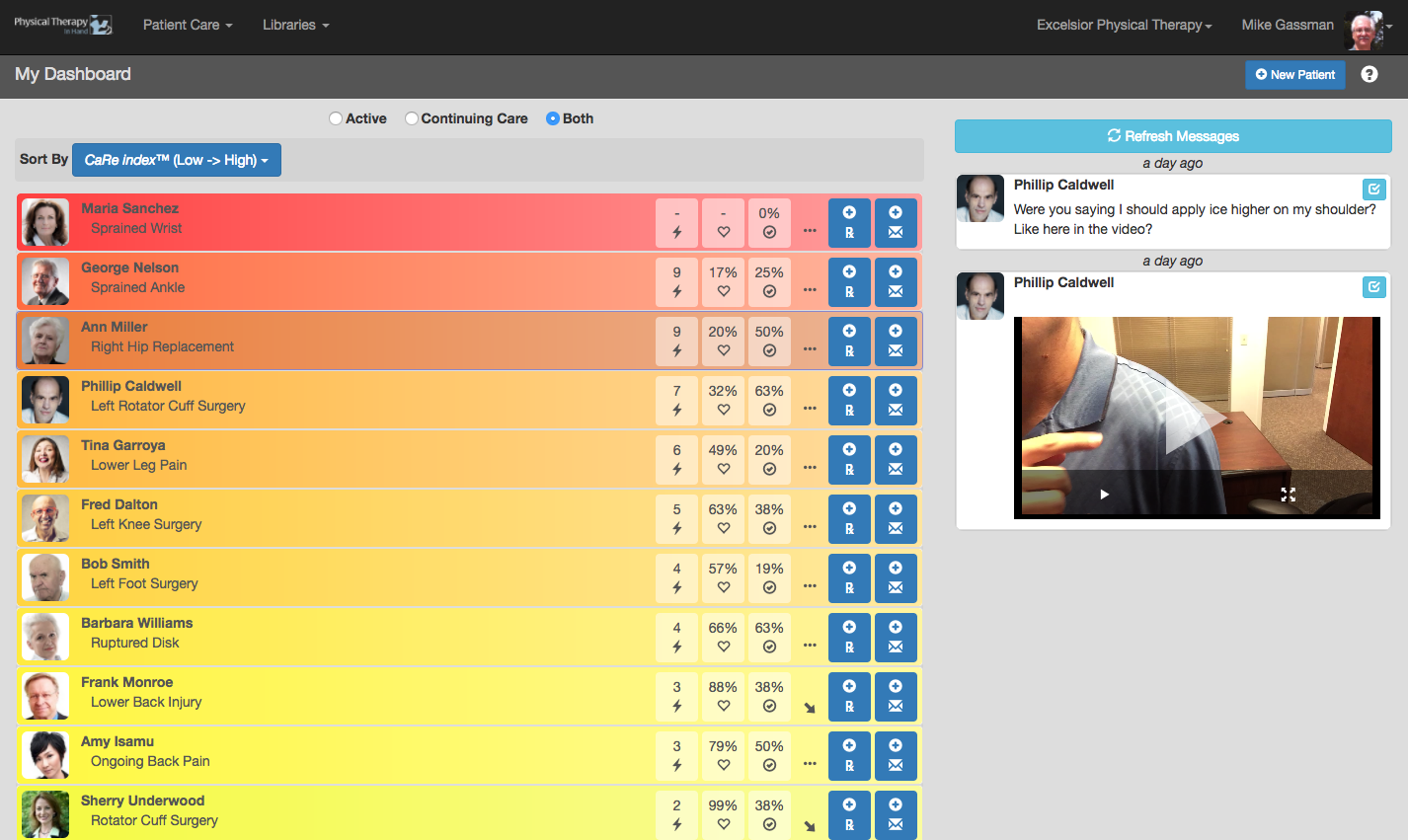
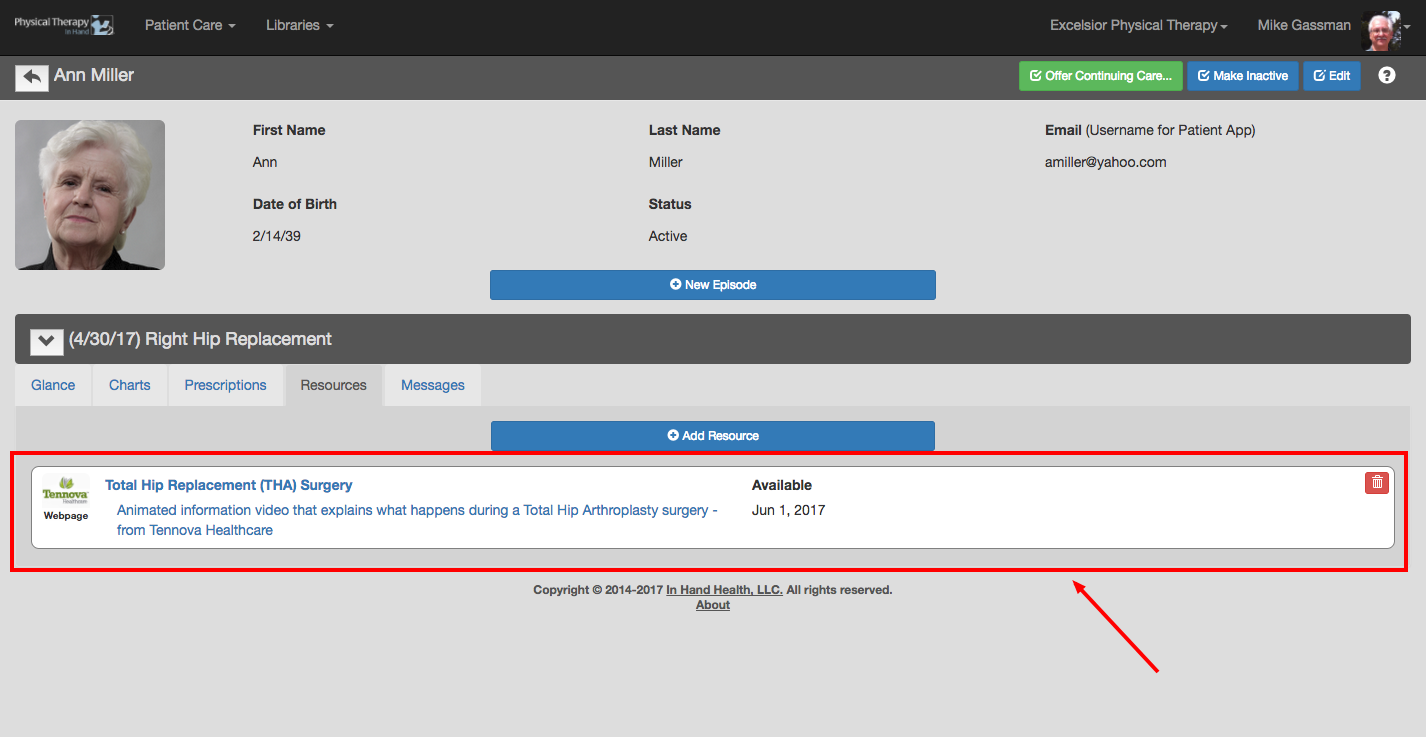
To distribute a Resource to a patient via his or her In Hand Health Patient App, select their name from the Patient Dashboard:
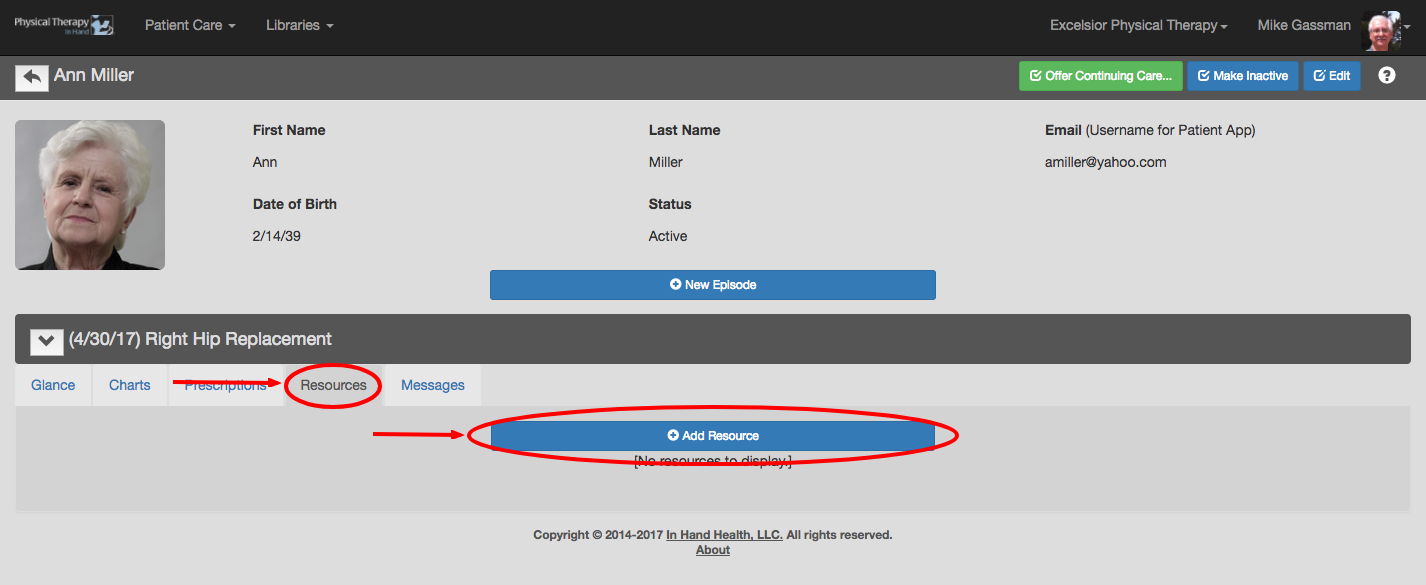
In an open episode section, click or tap the Resources tab and then the Add Resource button:
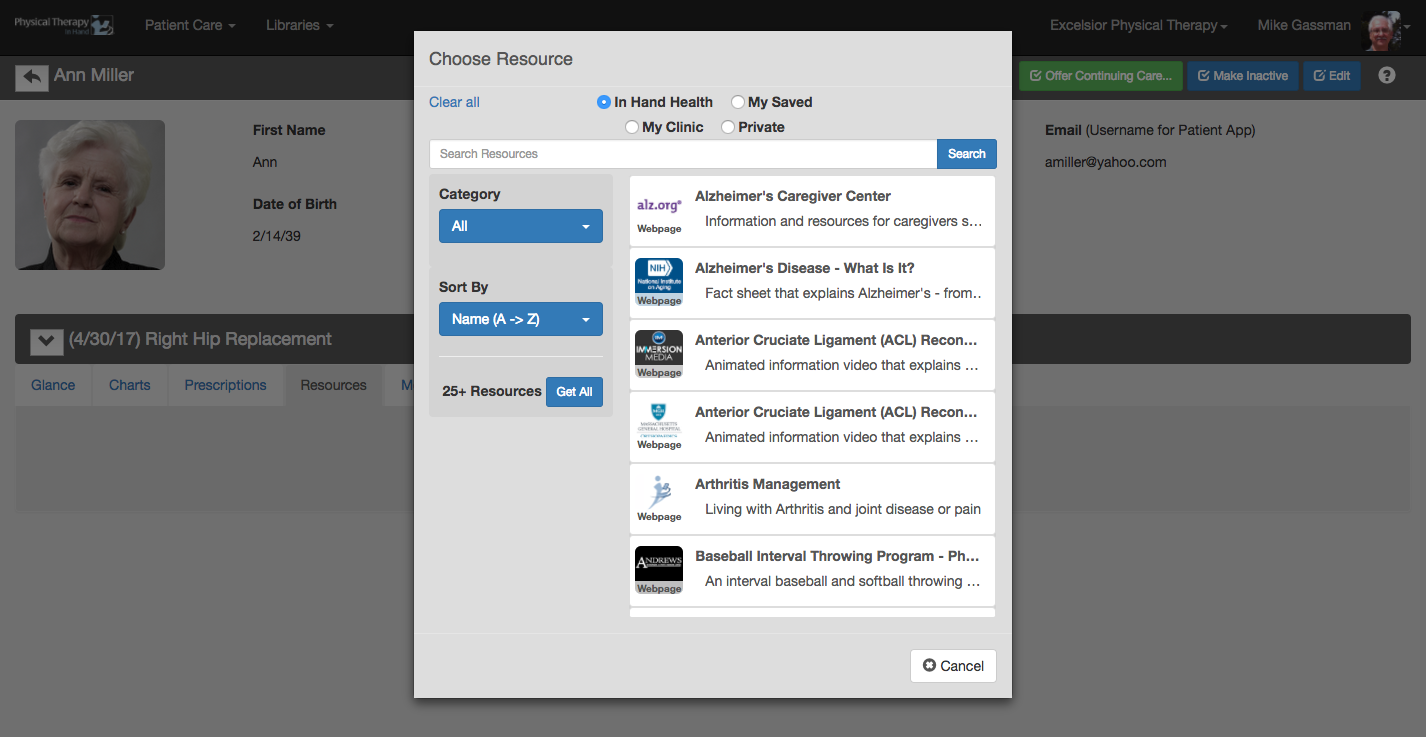
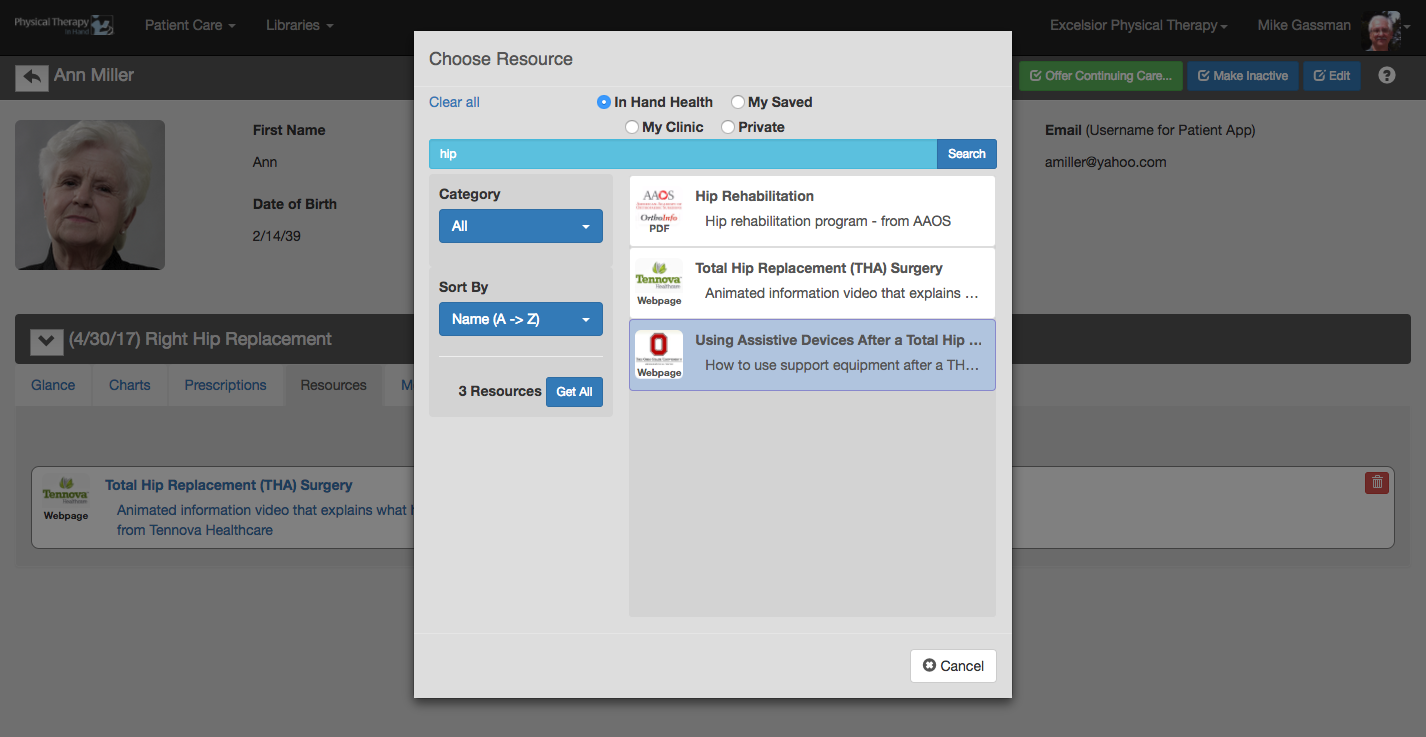
The "Choose Resource" listing appears. This contains all the content from the Resources library:
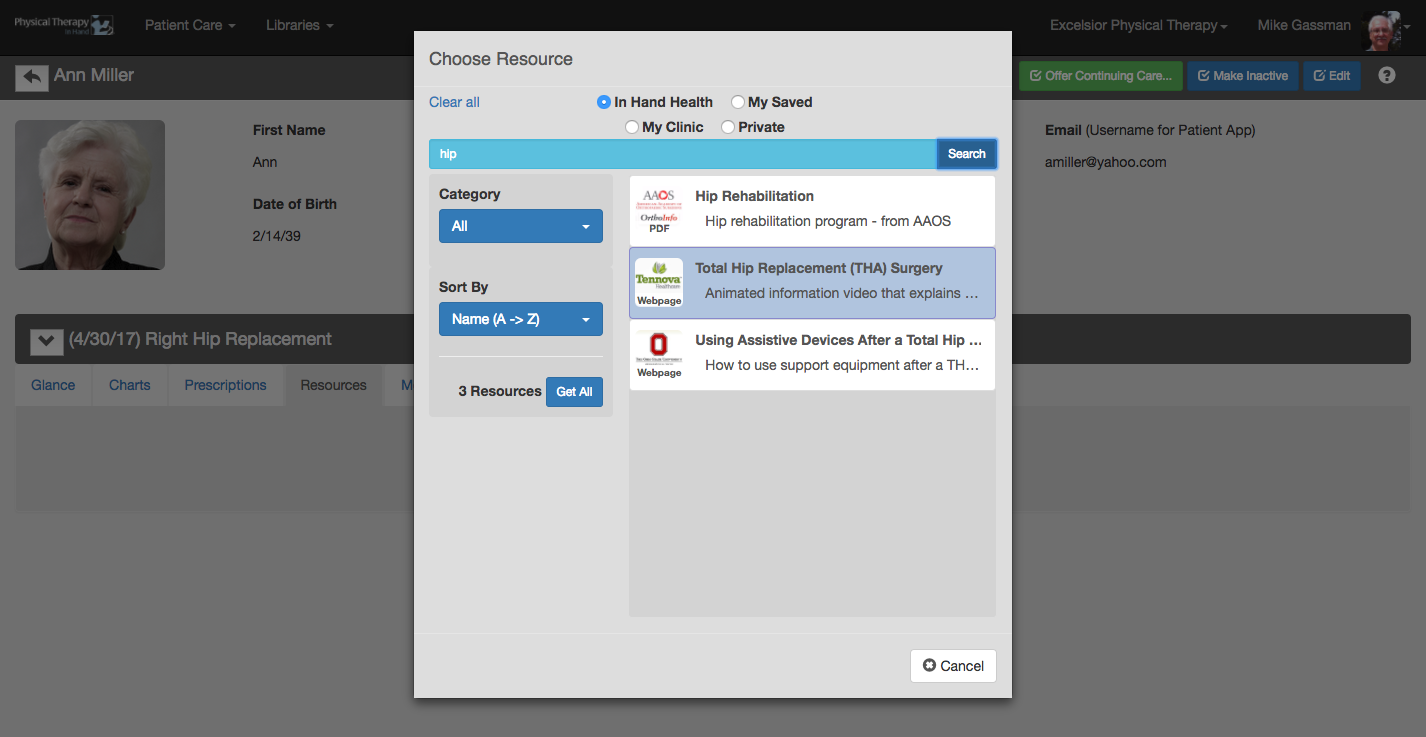
If necessary, use the search and sort options to reduce your choices to the Resources related to your patient's treatment and/or condition.
Once you locate the Resource you need, click or tap on it:
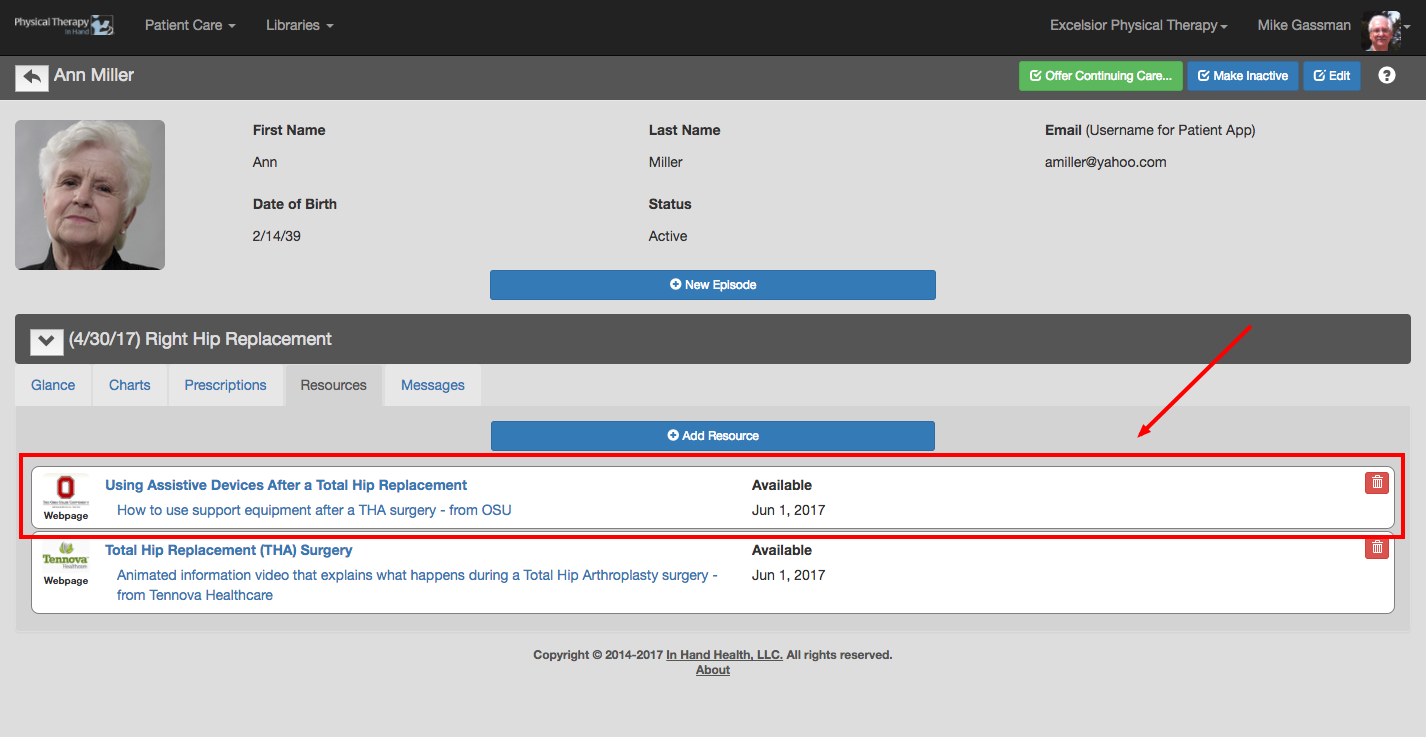
The Resource is then added to the Resources tab as an active Resource.
In addition, the patient receives a notification on their smartphone where the In Hand Health Patient App is installed that the resource is available. They can tap on the notification to read it or access it in the Resources section of the app.
Repeat the process to add more Resources to the patient's episode: