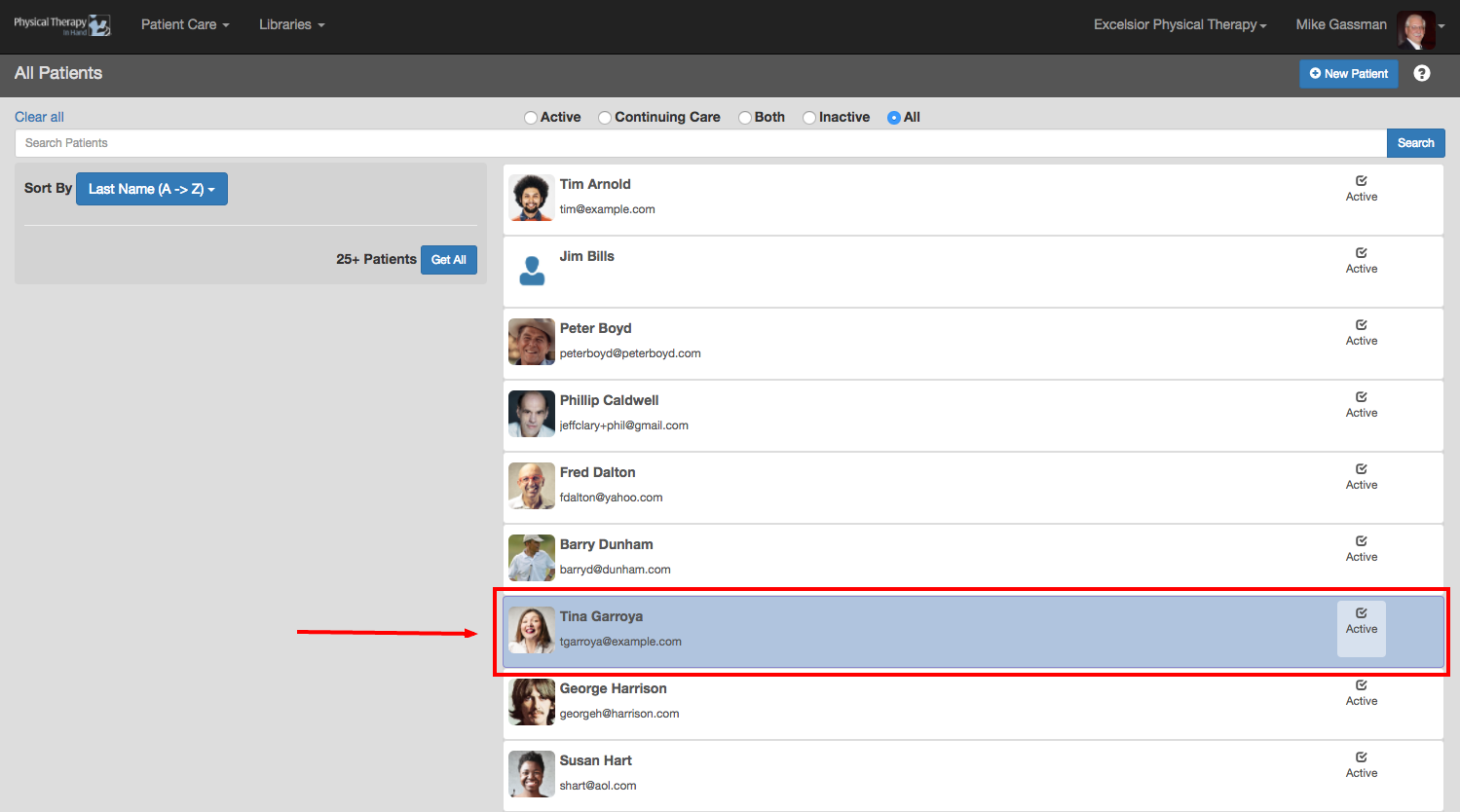
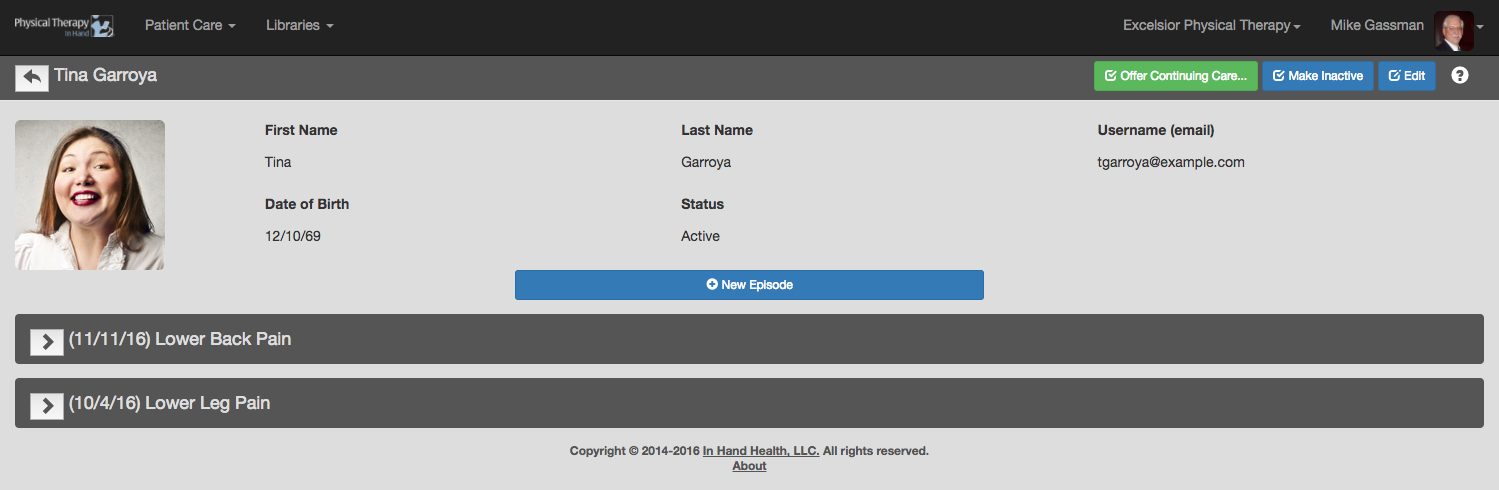
Follow these steps to access a patient's record:
- Open a web browser.
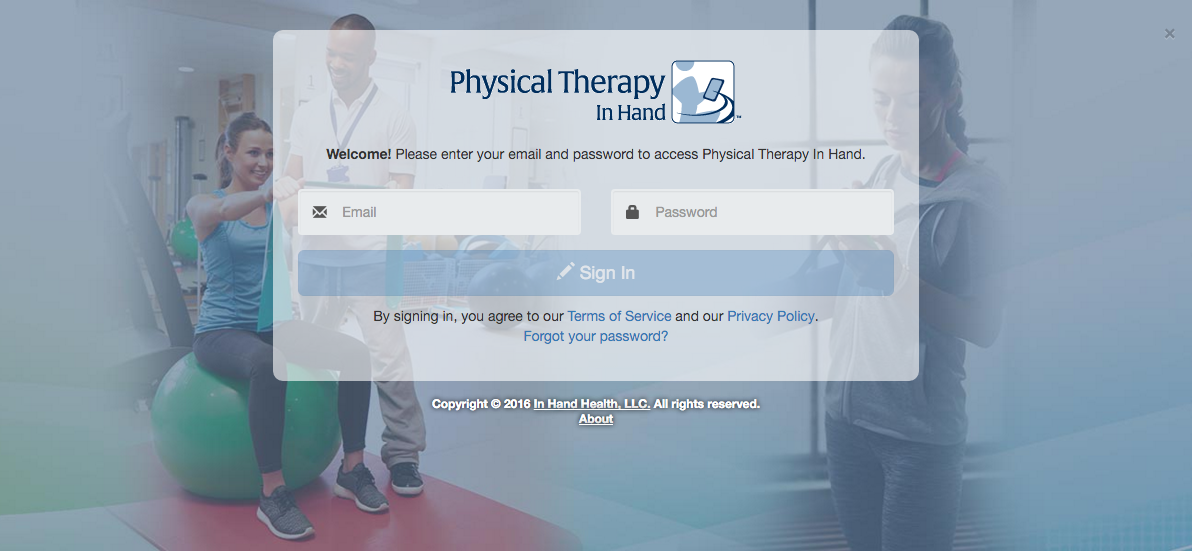
- Visit the following URL: https://clinic.inhandhealth.com
- You can also go to www.inhandhealth.com and click on the Sign In link to access the application.
- Sign in using your email address and password.
ACCESS PATIENT RECORDS: METHOD 1
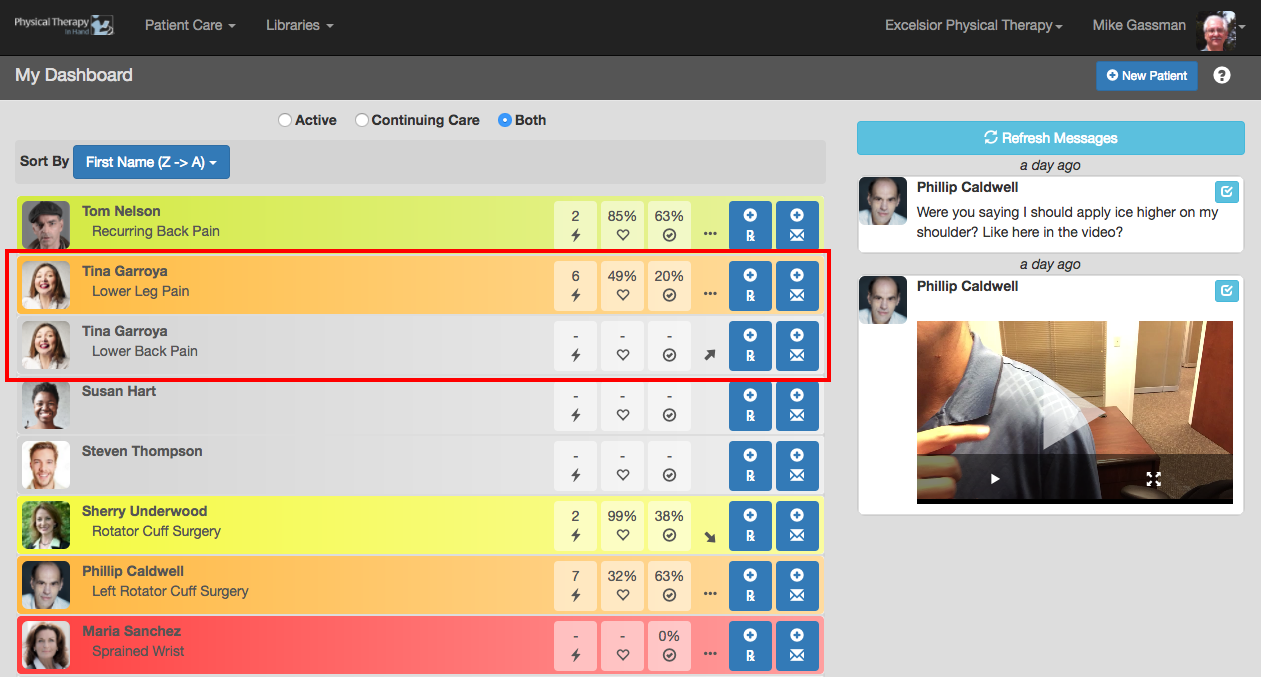
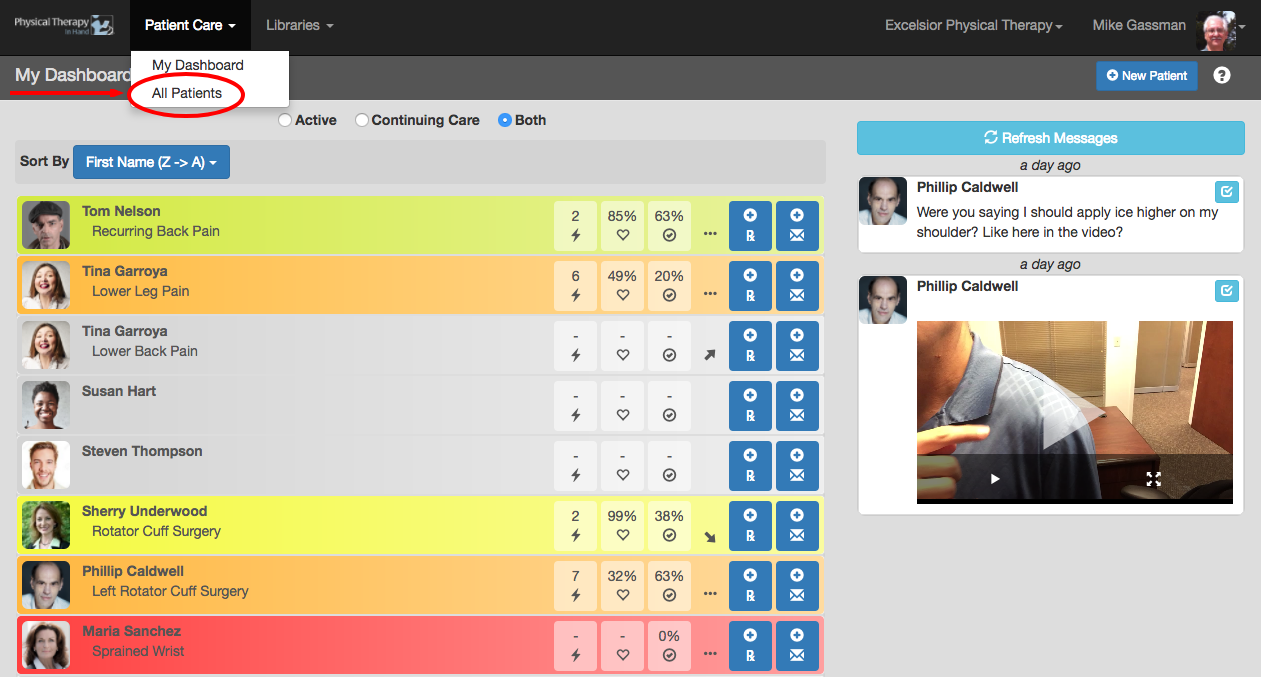
- After signing in, your Patient Dashboard will appear.
- Patients appear with each episode of care description (e.g. Back Pain, Sprained Ankle, etc.), meaning they will appear twice if they have two active episodes, three times if they have three active episodes, and so on.
- Locate the name of the patient and episode description whose record you wish to access.
- Tap or click on the patient/episode box to access the record.
ACCESS PATIENT RECORDS: METHOD 2
- After signing in, your Patient Dashboard will appear.
- Click or tap on the Patient Care menu item.
- Click or tap on All Patients.
- From the All Patients list, filter a selection with the radio buttons at the top of the screen or by searching for a specific patient by name.
- Click or tap on the name of a patient to access his or her record.