STEP 1
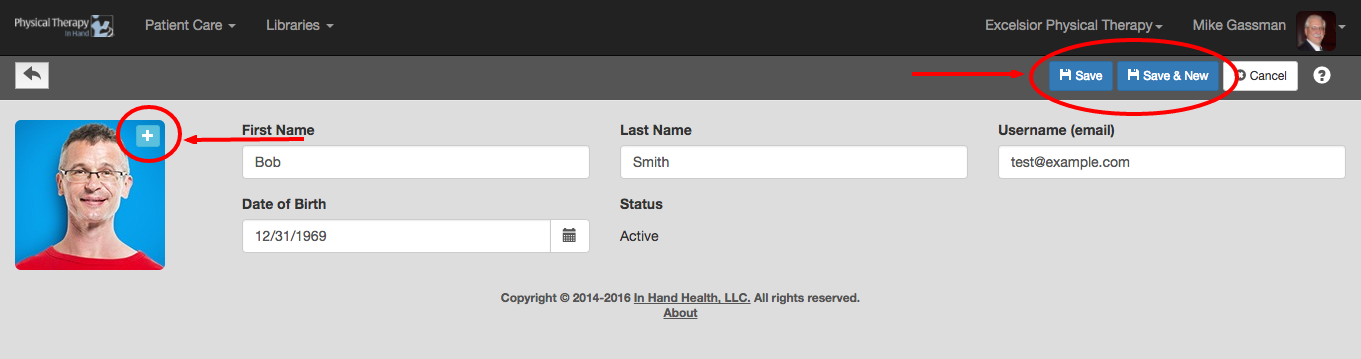
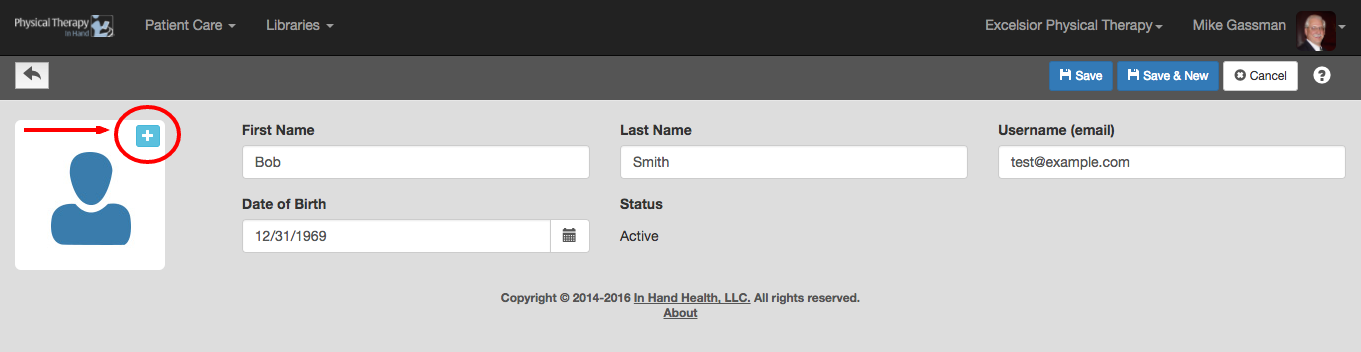
- To add or update a patient’s profile picture, click the plus (+) symbol next to the silhouette image.
STEP 2
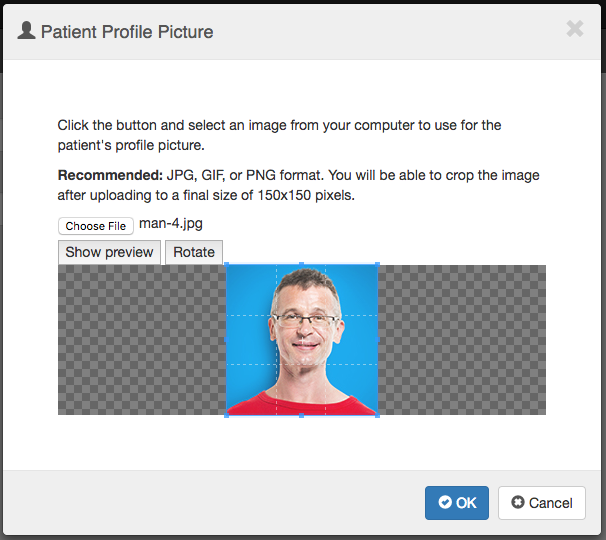
- Follow the directions in the “Patient Picture” dialog box to upload and crop the patient’s profile picture.
- Click the OK button when complete.
STEP 3
- Click the blue plus (+) icon to start over on the patient’s profile picture.
- Otherwise, click the Save button to commit your new information or the Save & New to commit this information and open a form for a new patient.