Follow these steps to create a new Exercise Template in your PTIH account:
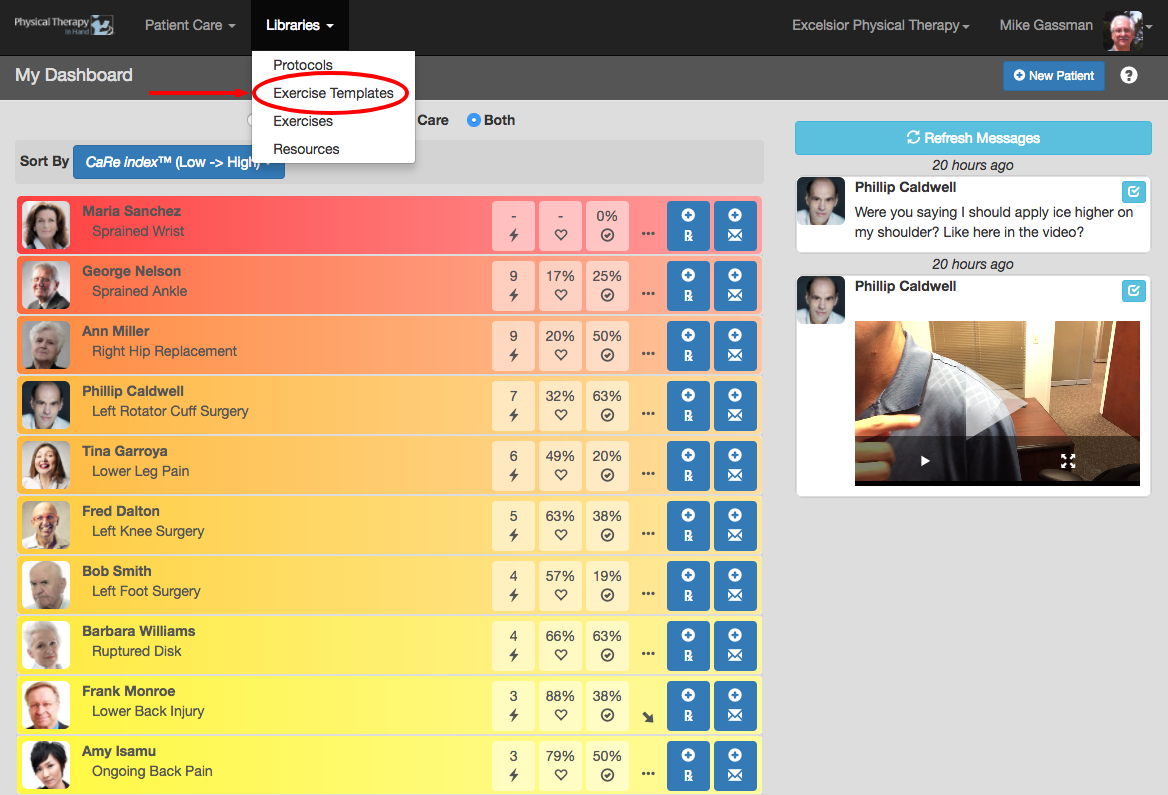
- Select Exercise Templates from the Libraries menu.
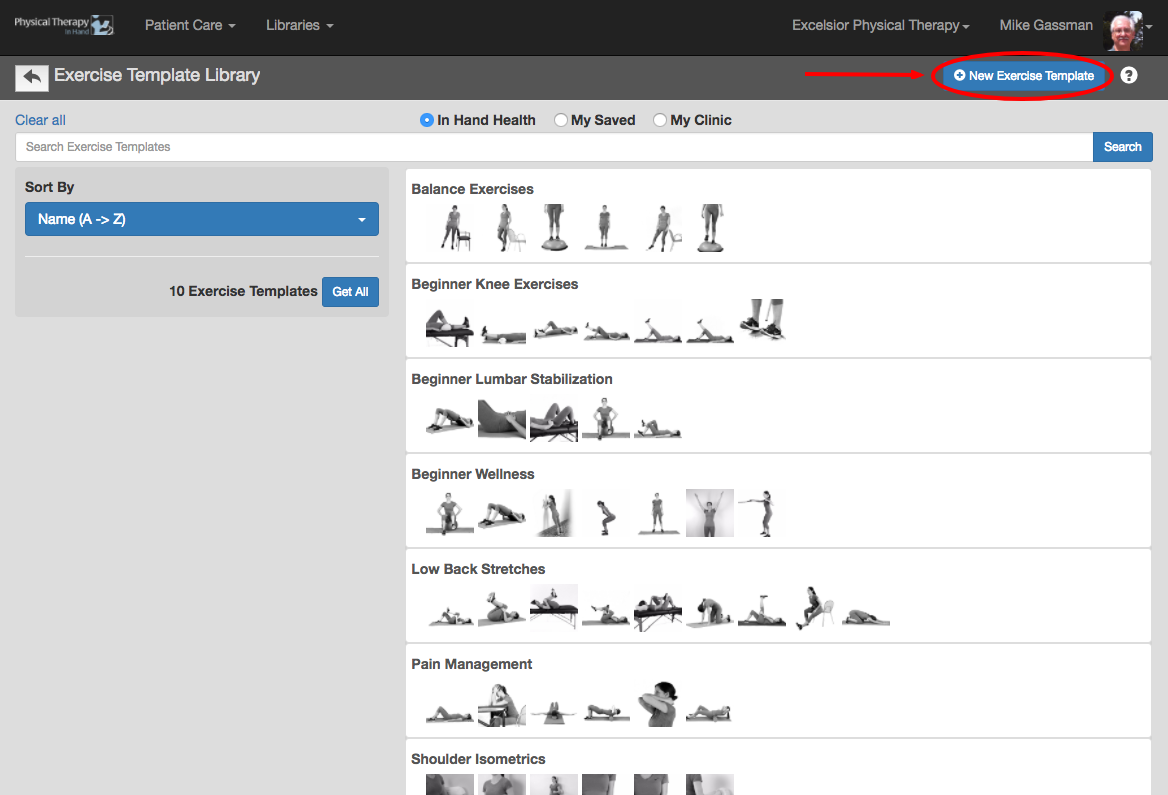
- Click or tap the blue New Exercise Template button.
- Enter a name for your Exercise Template in the Name field.
- Search for exercises to add to your Exercise Template using the In Hand Health, My Saved, and My Clinic radio buttons, the text Search field, and the blue Category, Region, Position, Target Muscles, Equipment, and Sort By filters.
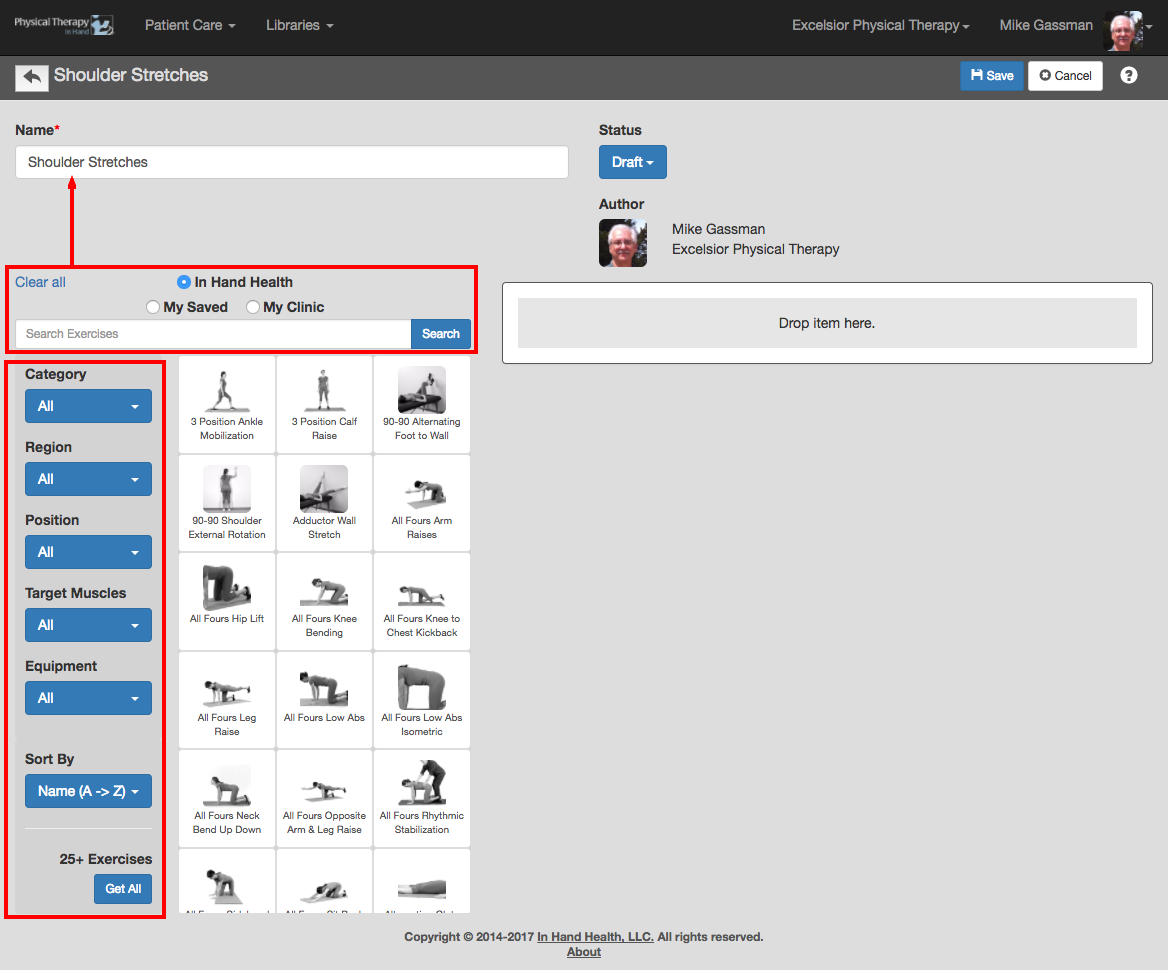
- Click or tap and hold a thumbnail image of an exercise you wish to add to your Exercise Template from its position on the left and drag it to the target “Drop item here” area on the right. Release the mouse button or your finger to add the exercise to the Exercise Template.
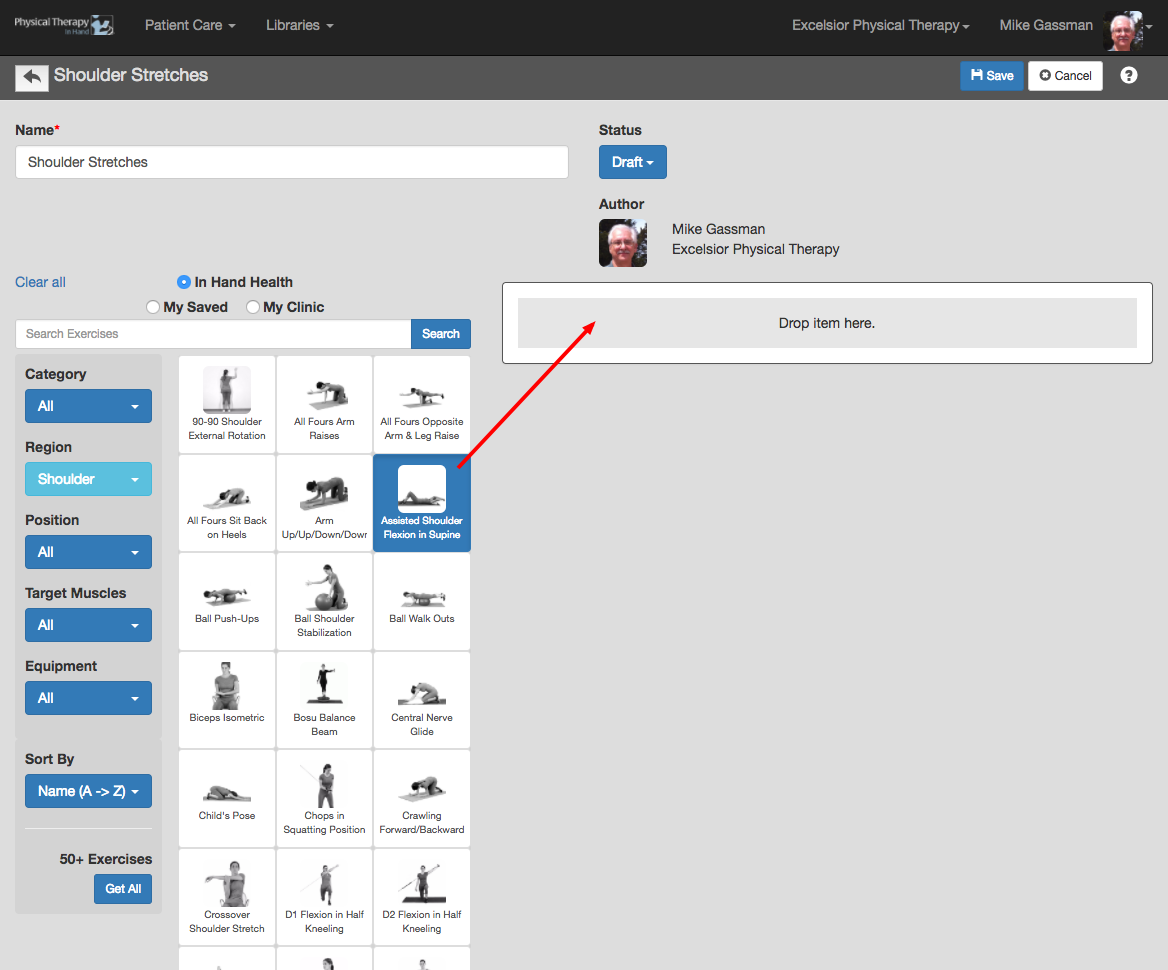
- Repeat for each exercise you want to add to the Exercise Template.
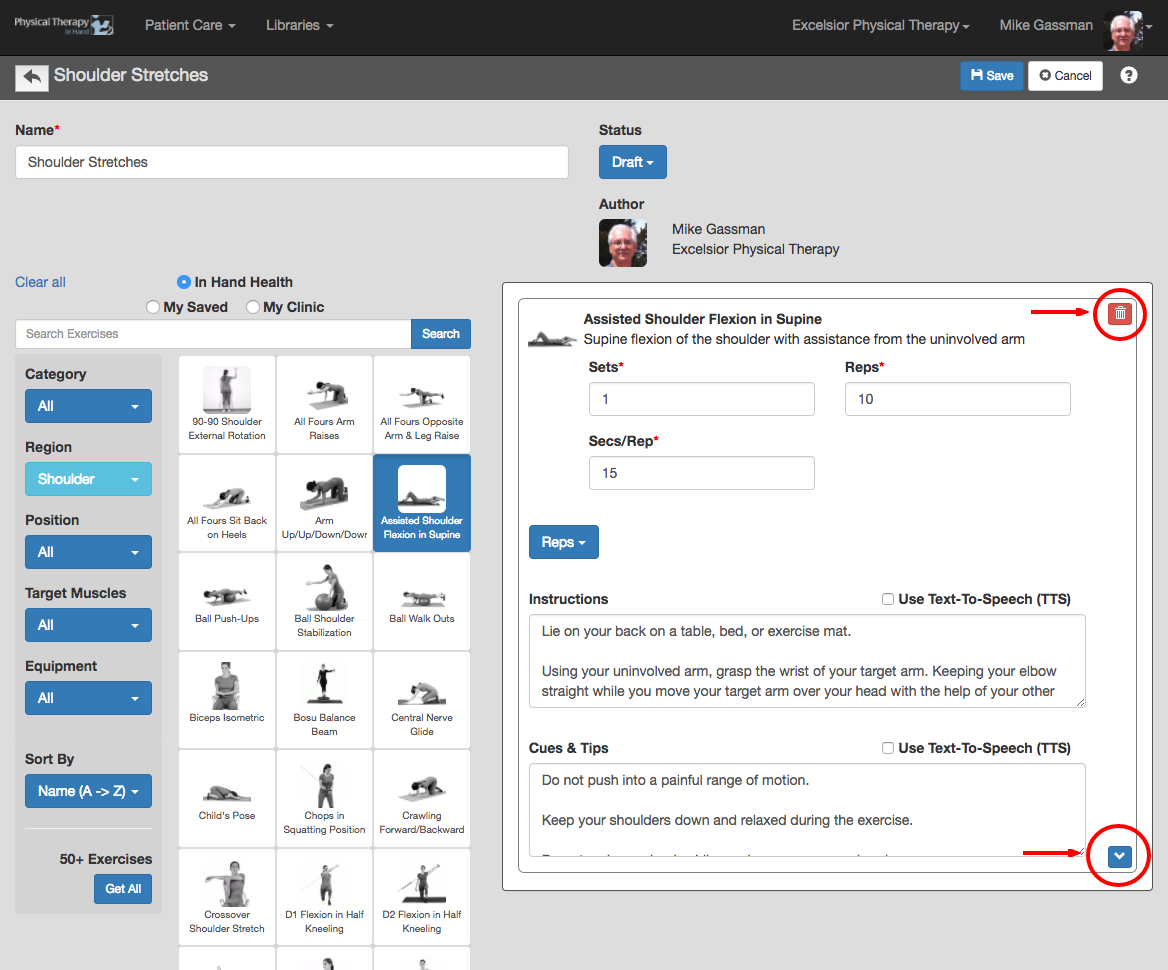
- Toggle the blue arrow button in each exercise’s capsule to edit Sets, Reps, Duration, Instructions and other settings within each selected exercise if necessary.
- Remove an exercise from your Exercise Template by clicking the red trash can icon.
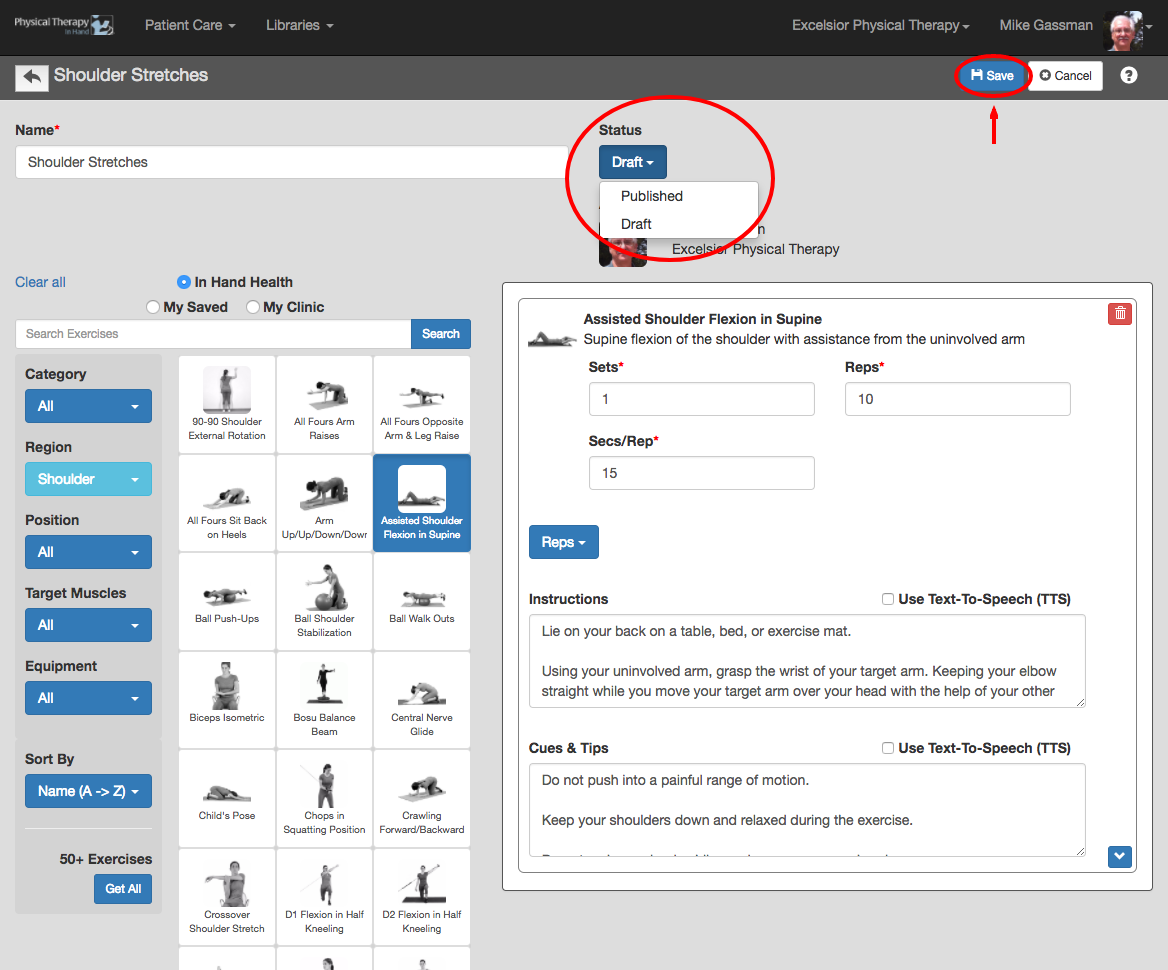
- When your selections and edits are complete, determine the Status of your Exercise Prescription accordingly:
- Set the Status pulldown to Draft if you wish to make changes later. Your Exercise Template will remain in your My Saved section but cannot be used in a prescription.
- Set the Status pulldown to Published to share your Exercise Template with other physical therapists in your PTIH clinic in My Clinic and to enable the Exercise Template to be used within a prescription.
- Click the blue Save button.