
A PTIH clinic account can accommodate as many staff members as required. You can also assign different “roles” to staff members that permit different levels of access to the functionality of the PTIH application.
Staff Roles
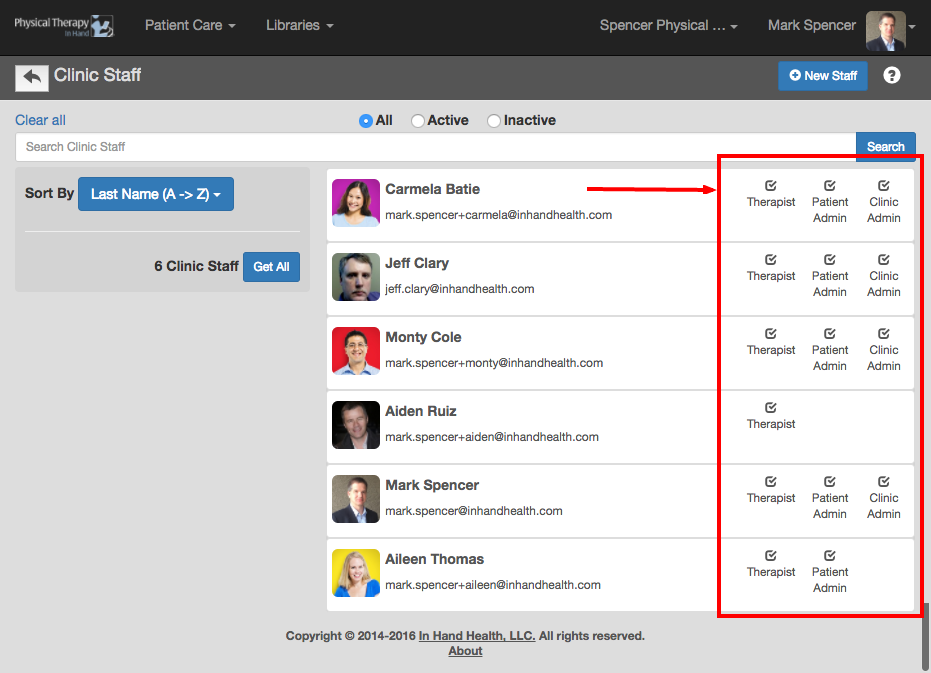
The three possible Staff Roles in PTIH do not overlap and have specific responsibilities. Note that Staff Members are not limited to one role and can have any combination of the three as described here:
- Clinic Administrator: The Clinic Administrator role manages the Clinic account and can add/delete/edit staff members. A Clinic Administrator is also the only role who can manage Continuing Care subscriptions. The person who created your PT practice’s Clinic in PTIH is automatically given this role and others can be assigned Clinic Administrator privileges when their accounts are created if necessary. A PTIH Clinic must always have one active Clinic Administrator.
- Patient Administrator: The Patient Administrator role is able to create new patient accounts and assign patients to therapists. Patient Administrators are not able to build exercise prescriptions, view patient compliance data, or access patient-therapist communications.
- Therapist: The Therapist role is able to build exercise prescriptions, view compliance data, and communicate directly with his or her patients only. A therapist cannot create new patients or therapists or access clinic data unless they also have appropriate Administrator roles.
Set Roles
Clinic Administrators can set the roles for all Staff members. Follow these steps:
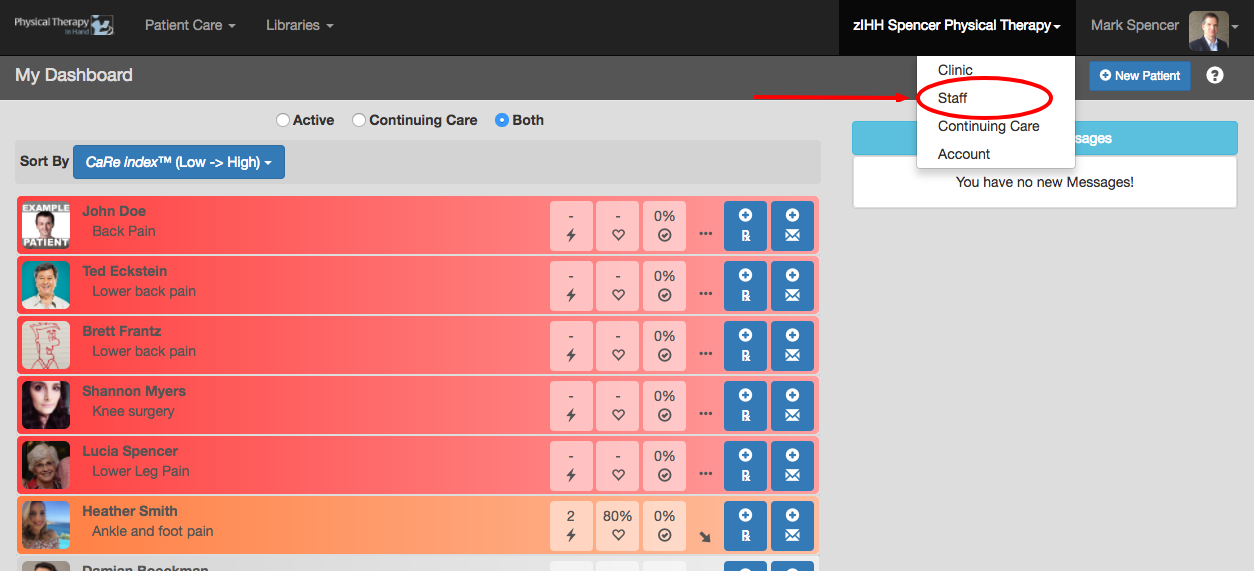
- Click your clinic's name in the top menu bar and select Staff.
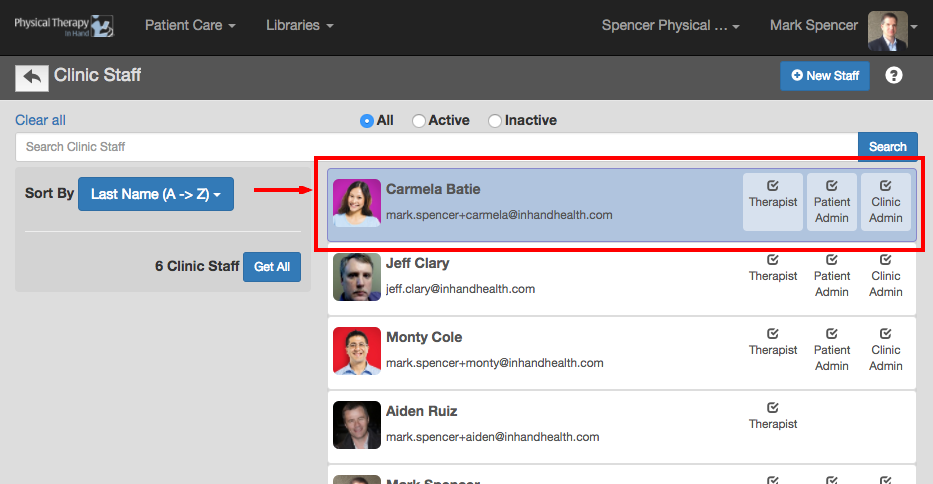
- Click or tap on a staff member's capsule to edit his or her roles.
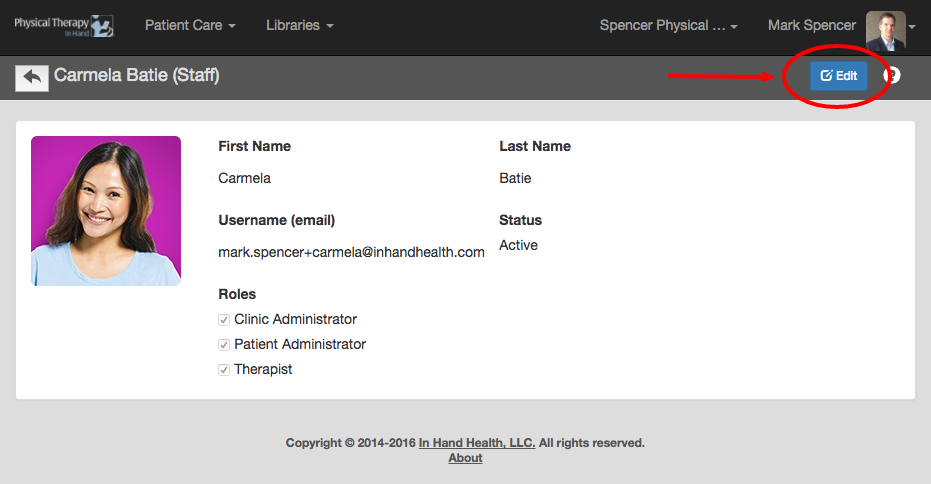
- Click or tap the Edit button on the staff member's record.
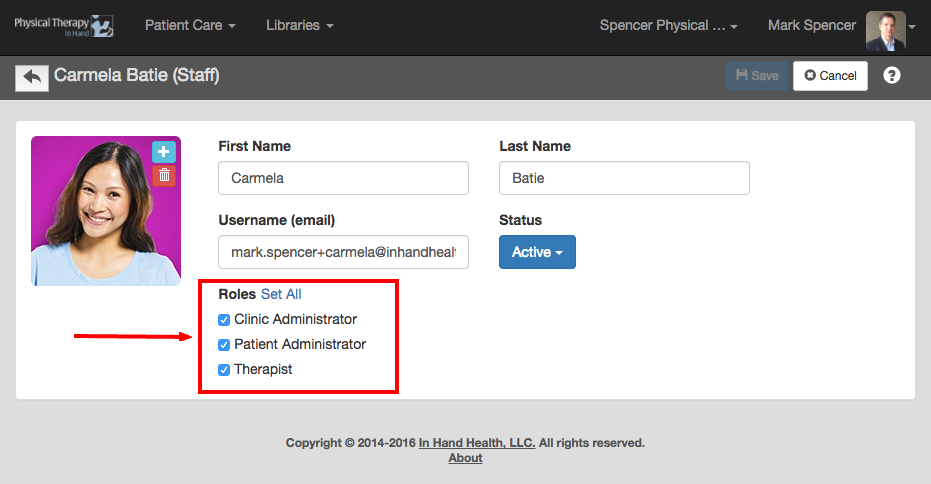
- Add or remove roles from a staff member by checking or de-selecting the appropriate boxes.
- When done, click or tap the Save button.
- Review the roles of all your Staff members from the Staff overview screen.
Staff Active or Inactive Status
PTIH maintains Staff accounts indefinitely with the option to make each account “Active” or “Inactive”. (See Manage Staff: Add or Edit Staff Members.) This gives PTIH Clinic Administrators the ability to temporarily suspend a Therapist account for any reason (vacation, maternity leave, bereavement leave, etc.) without losing patient activity records.
Permanent Staff Account Deletion: Staff accounts can be permanently deleted by sending an email to support@inhandhealth.com.