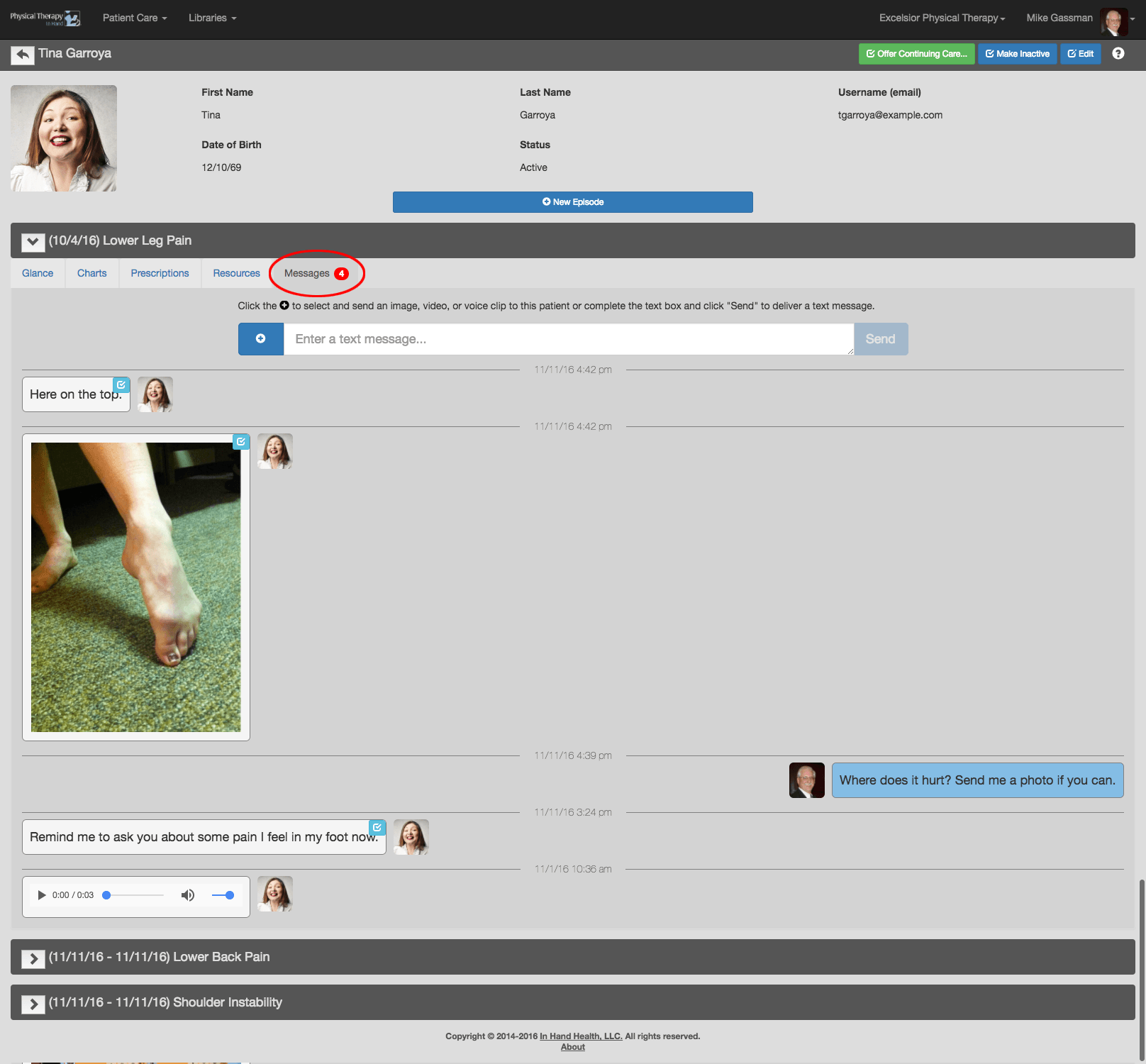
Use the Messages feature of PTIH to send secure HIPAA-compliant communications including text messages, audio (voice) clips, images, and video.
Messages on the Patient Dashboard
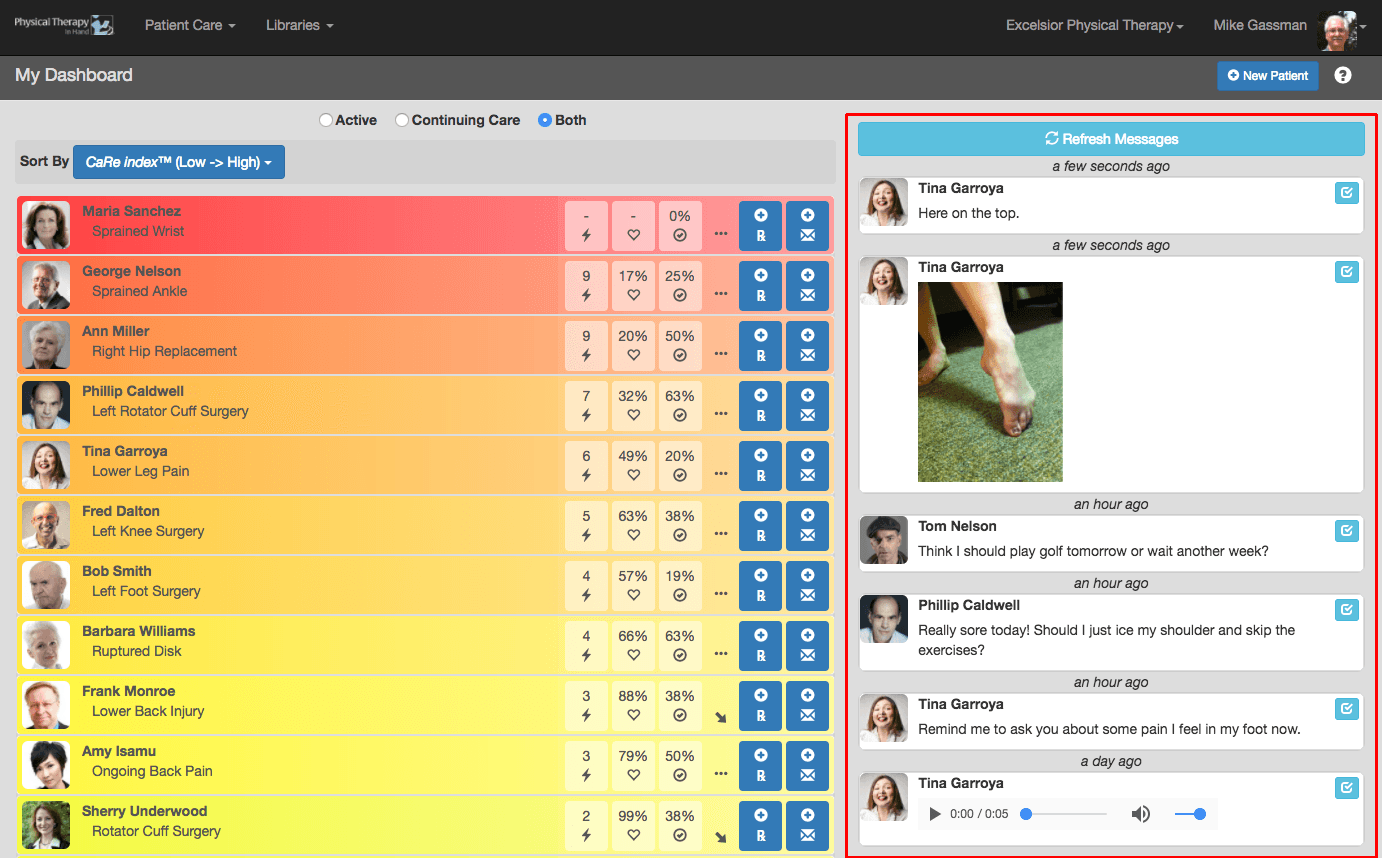
- After signing in, your Patient Dashboard will appear.
- Unread patient messages will be listed on the right side with the most recent at the top of the list.
- Clicking or tapping on the icon in the upper right of the message bubble will mark the Message as read and remove it from the dashboard.
- Clicking or tapping on the message bubble will take you into that patient’s Messages tab in the open episode where you can respond or review the entire message history. The message will remain on the dashboard until you mark it as read (clicking or tapping the icon in the upper right of the message bubble).
- Click or tap the Refresh Messages button to manually check for new messages. Otherwise, it will refresh automatically every 5 minutes.
Messages Tab
- Access a patient's Messaging history with the Messages Dashboard Shortcut or by clicking on one of his or her messages on the side of the Patient Dashboard as described above.
- Alternatively, use one of the methods described in the Access Patient Records section, select an episode, and click or tap the Messages tab to access your Message history with him or her.
- All outgoing messages from you are delivered to the patient’s In Hand Health Patient App in the app's Messages section.