To send an image to a patient:
- Enter the patient's Messages tab as described in the Messages: Overview and Access section.
- Save the image (JPG, PNG, or GIF) you wish to send to your patient on your computer or tablet.
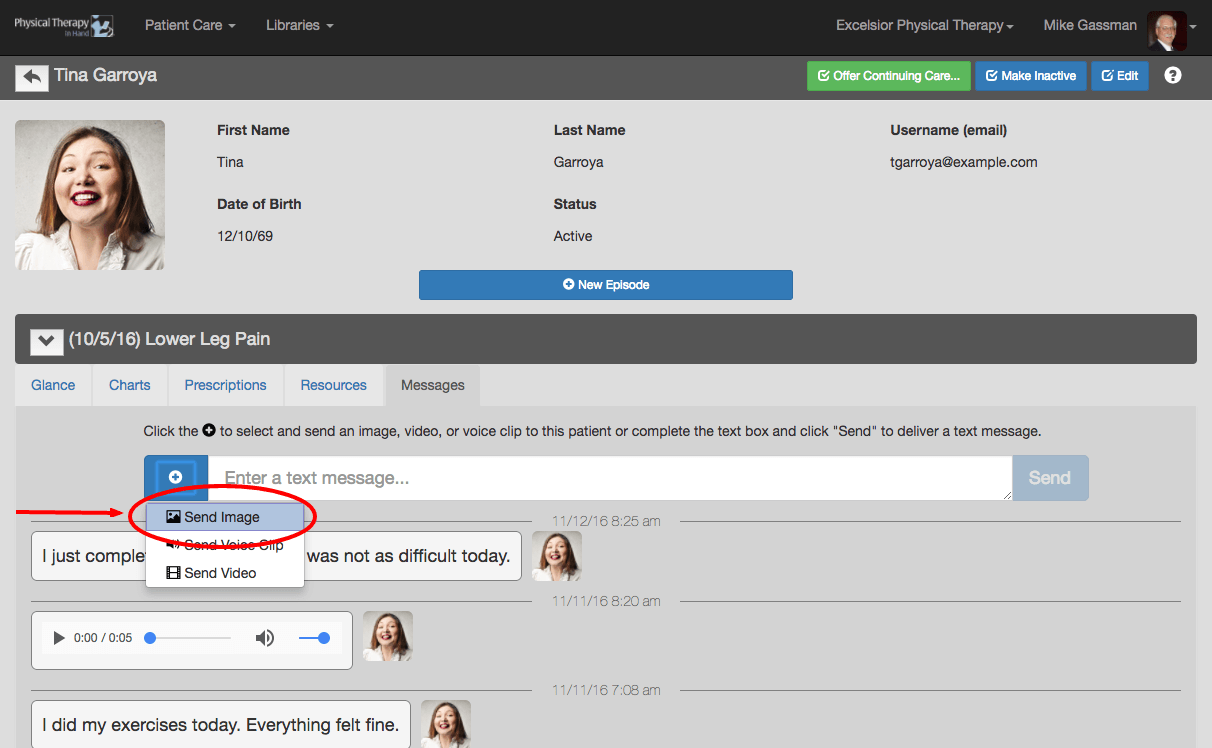
- Click the blue plus (+) button and select Send Image.
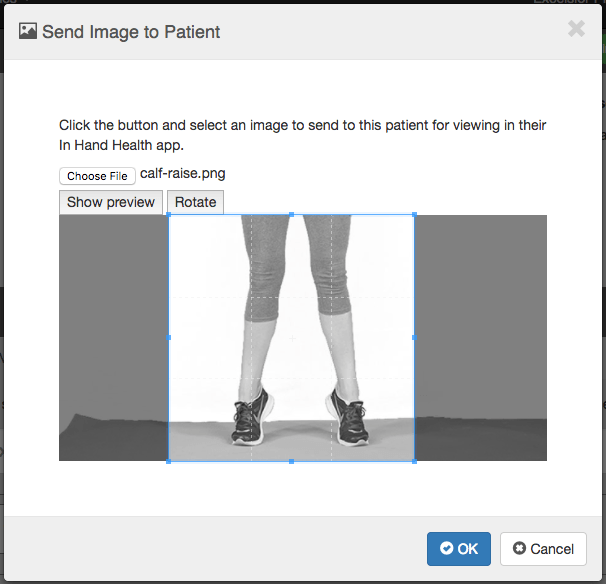
- Follow the instructions in the Send Image to a Patient dialog box and click OK.
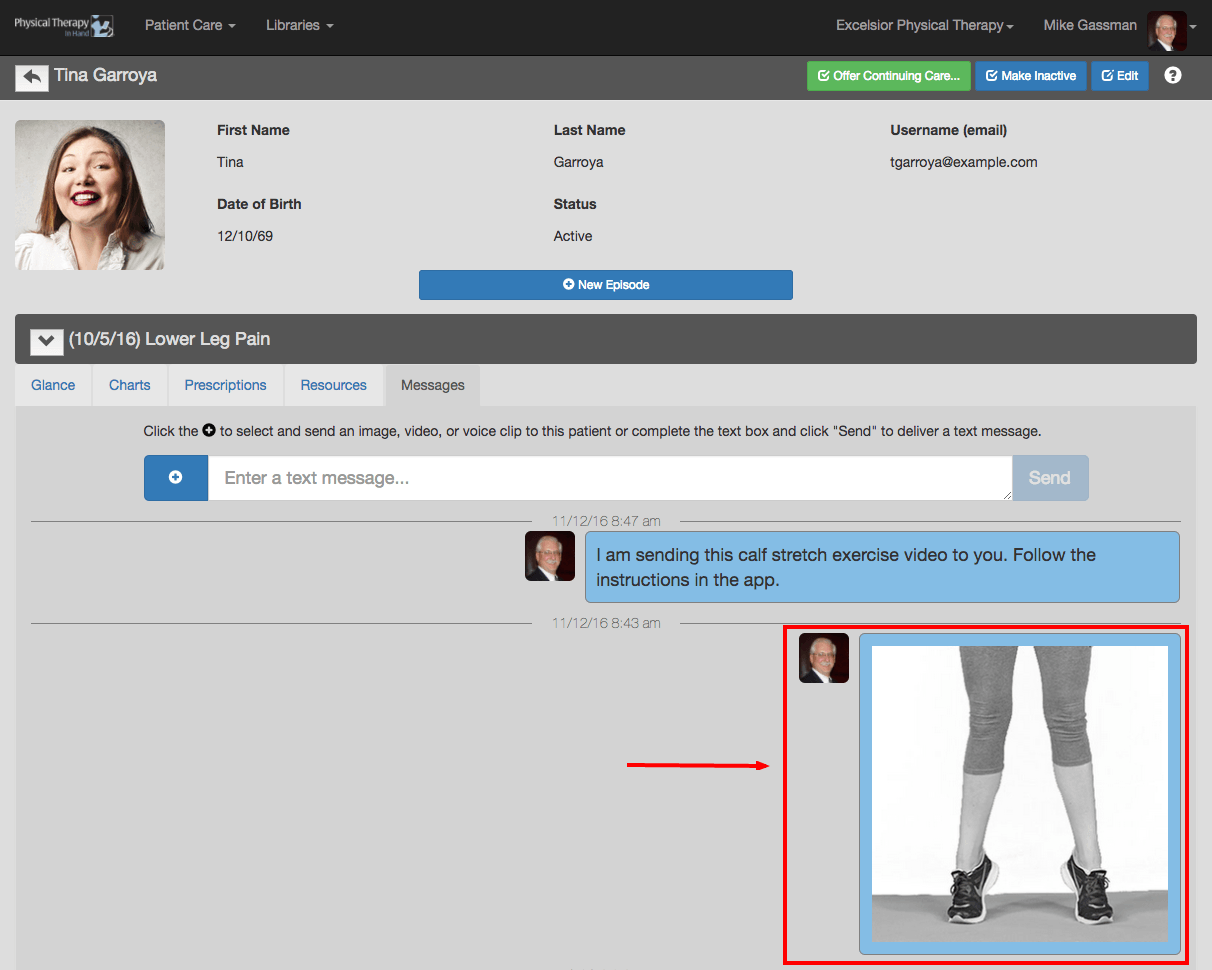
- The image will be securely sent to the Messages section of the patient’s In Hand Health Patient App.