You can add staff members to your PTIH account through these steps:
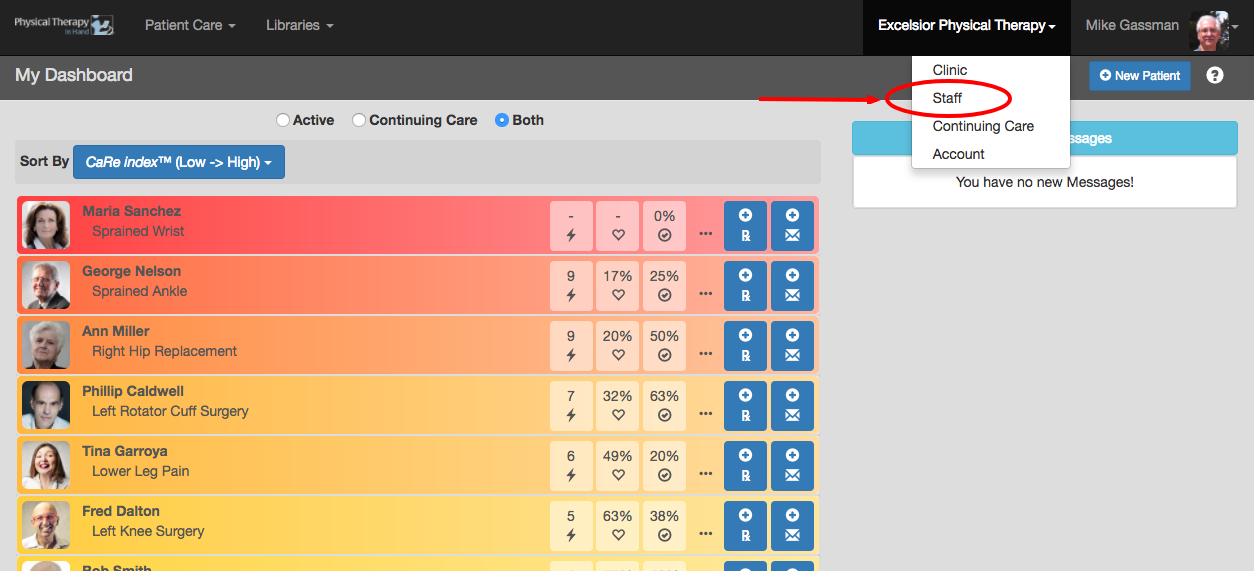
- Your clinic’s name will appear at the top of the PTIH screen.
- Click or tap the clinic’s name one time and then click or tap Staff.
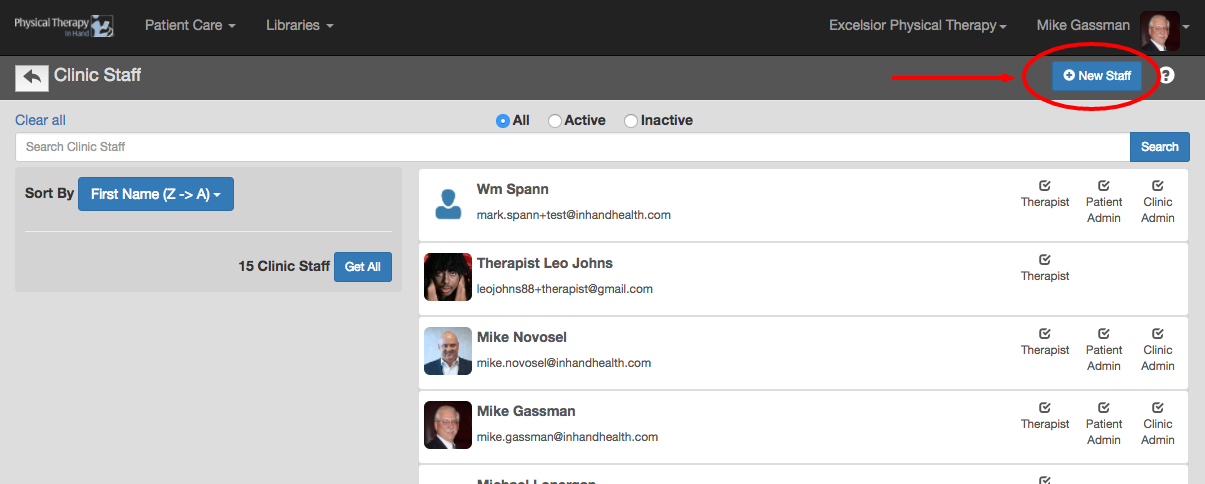
- Click the New Staff button.
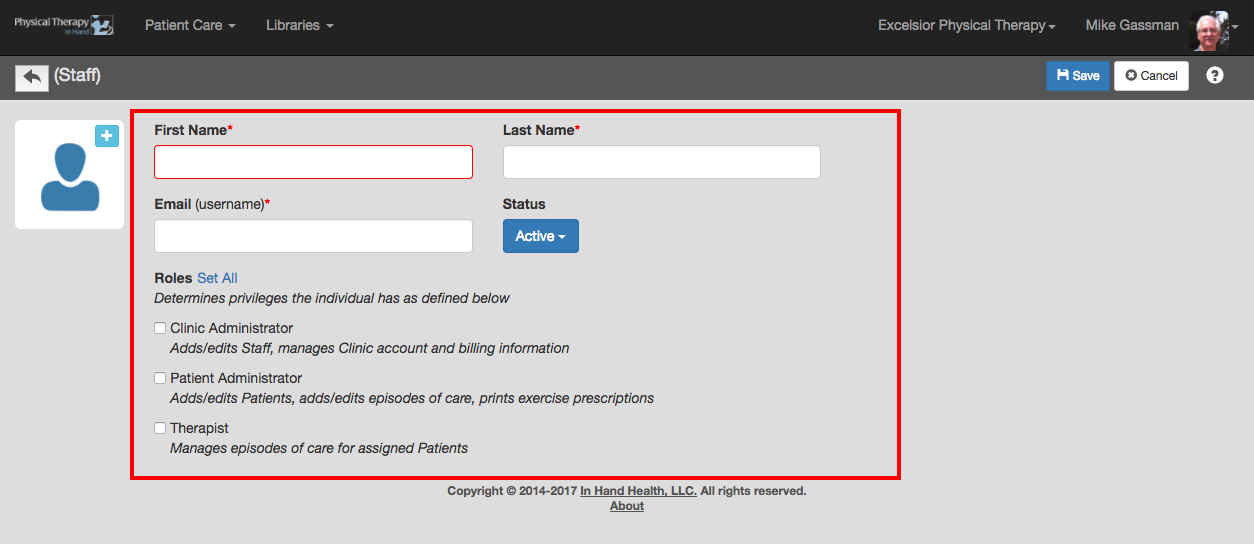
- Enter the new staff member’s first name and last name.
- Enter the new staff member’s email address. (VERY IMPORTANT: This email address will be the new staff member’s username and must be a valid working email address for the new staff member to sign into PTIH.)
- Select the new staff member’s Status to Active or Inactive. (See Manage Staff: About Roles and Status.)
- Select the Roles for the new staff member using guidance from the Manage Staff: About Roles and Status section.
- Click Save or proceed to the Manage Staff: Add or Edit Profile Picture section.