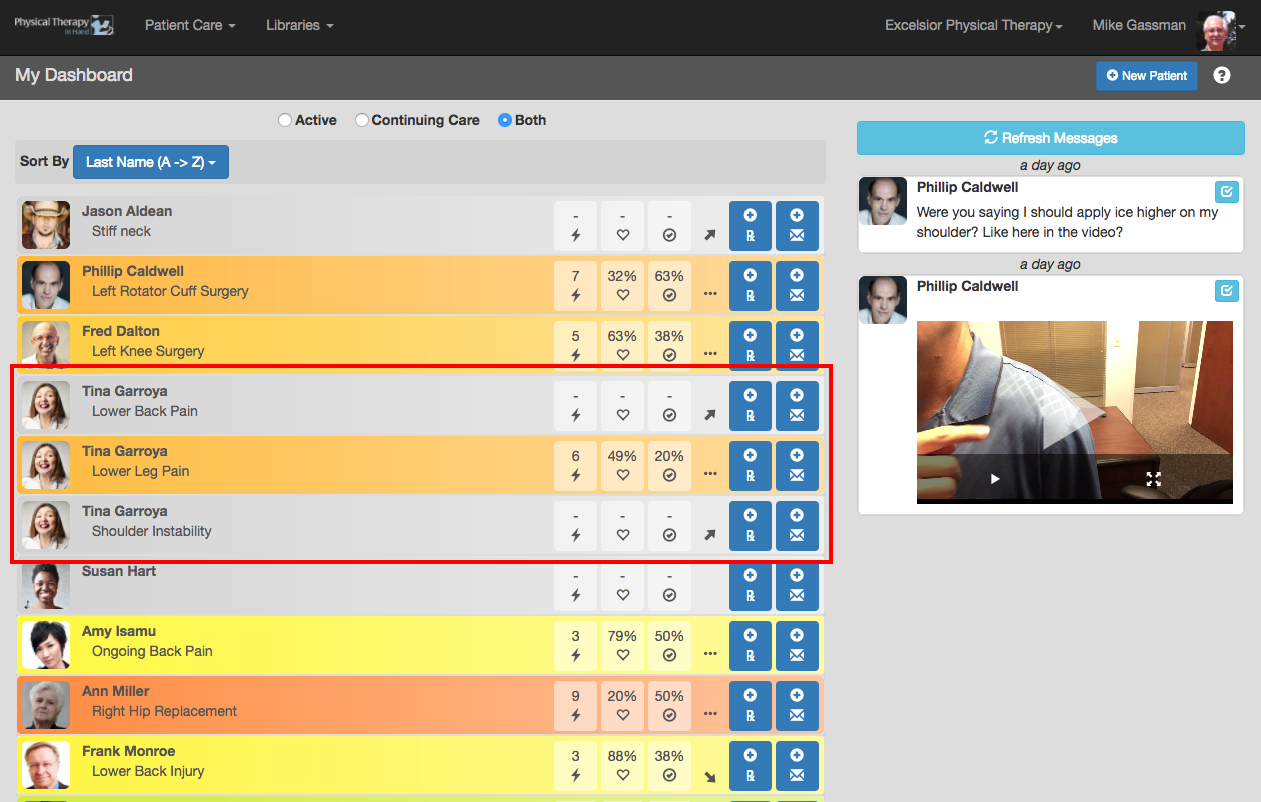
Find a patient and open his or her record (see how) or click on a patient's name/episode on the Patient Dashboard.
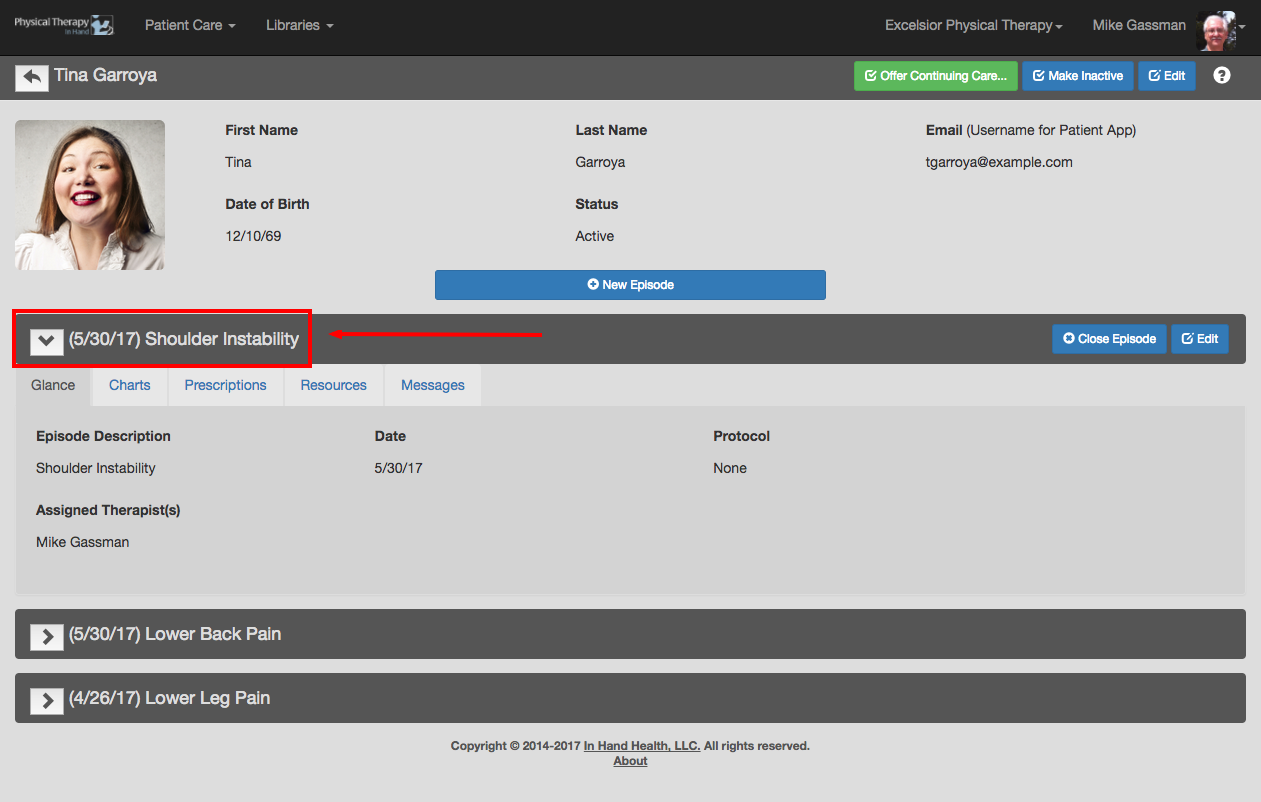
If you clicked or tapped on a patient/episode capsule on the Patient Dashboard, verify you are in the correct episode of care by checking the name in the title bar. Otherwise, click on the arrow next to the name of the episode of care you want to close.
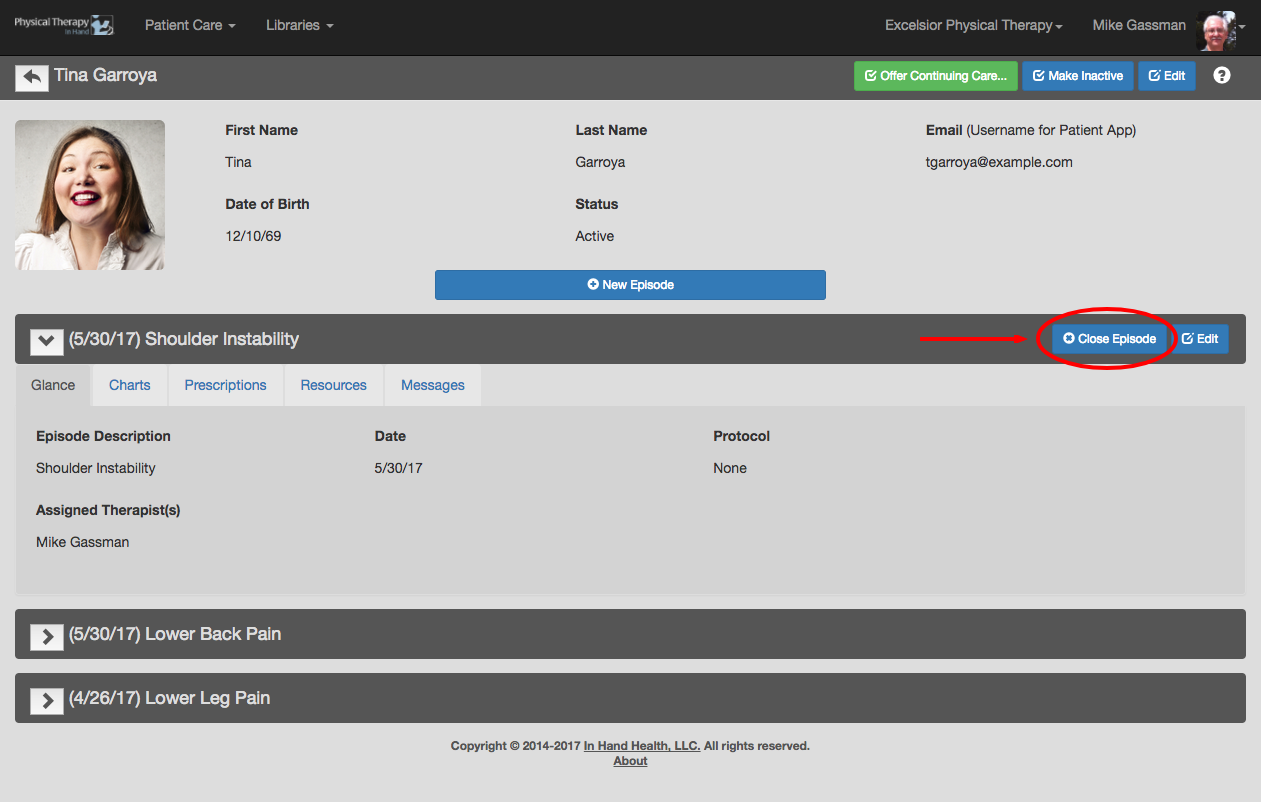
Click the Close Episode button. Note: If this is the patient’s only episode of care, this action will also remove the patient from the Patient Dashboard.
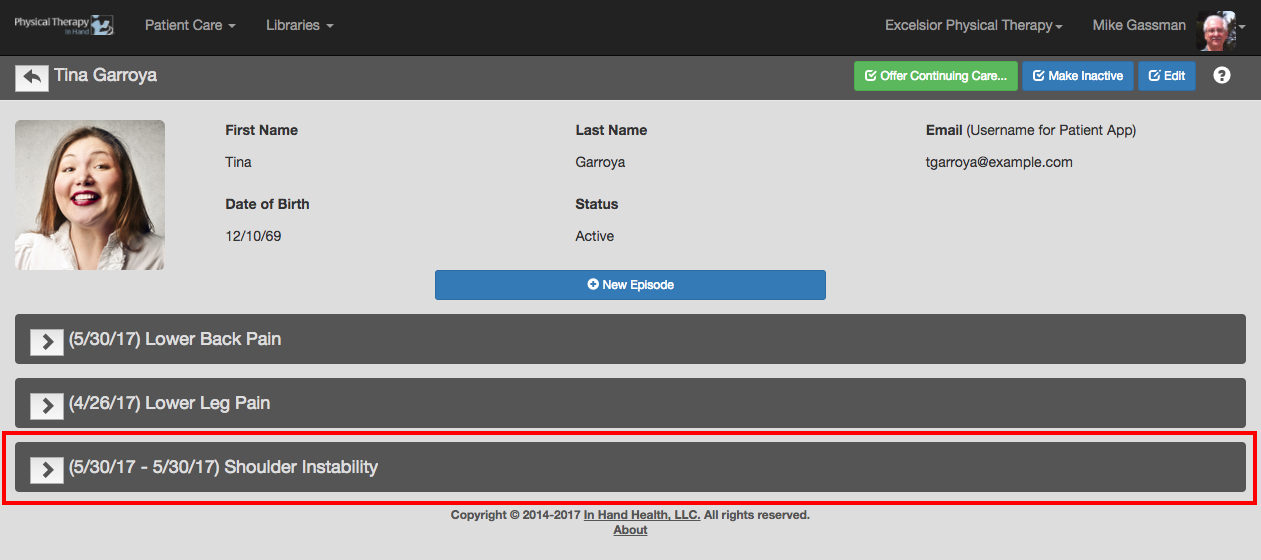
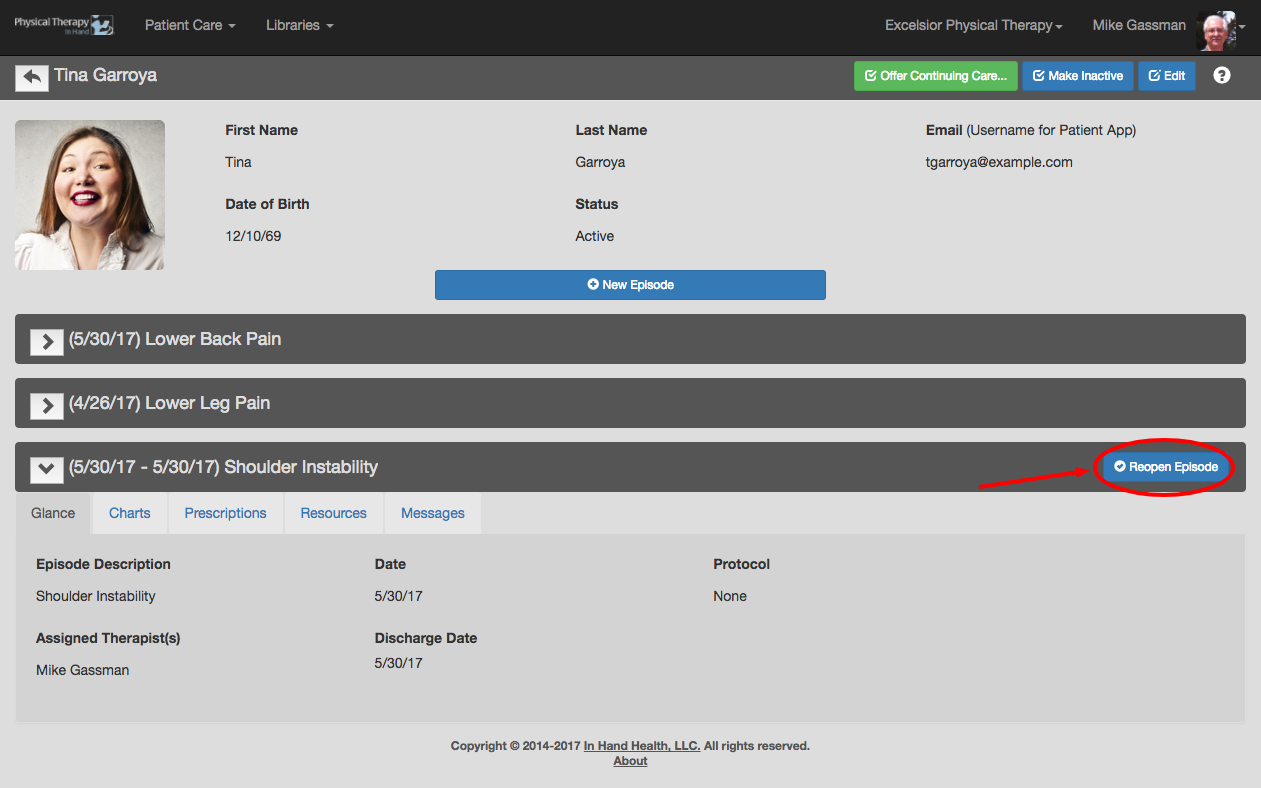
Notice the episode you just closed for this patient moves to the bottom of the episode list where it can still be referenced. The closing date is appended to the header.
Re-open any closed episode by expanding the episode details with a click or tap on the arrow next to the episode's name.