
PTIH Patient Dashboard Overview Video
The PTIH dashboard is designed to provide physical therapists a quick and insightful glance into their patients’ compliance and general well-being. It also serves as a starting place to develop plans of care for individual patients and send them secure messages.
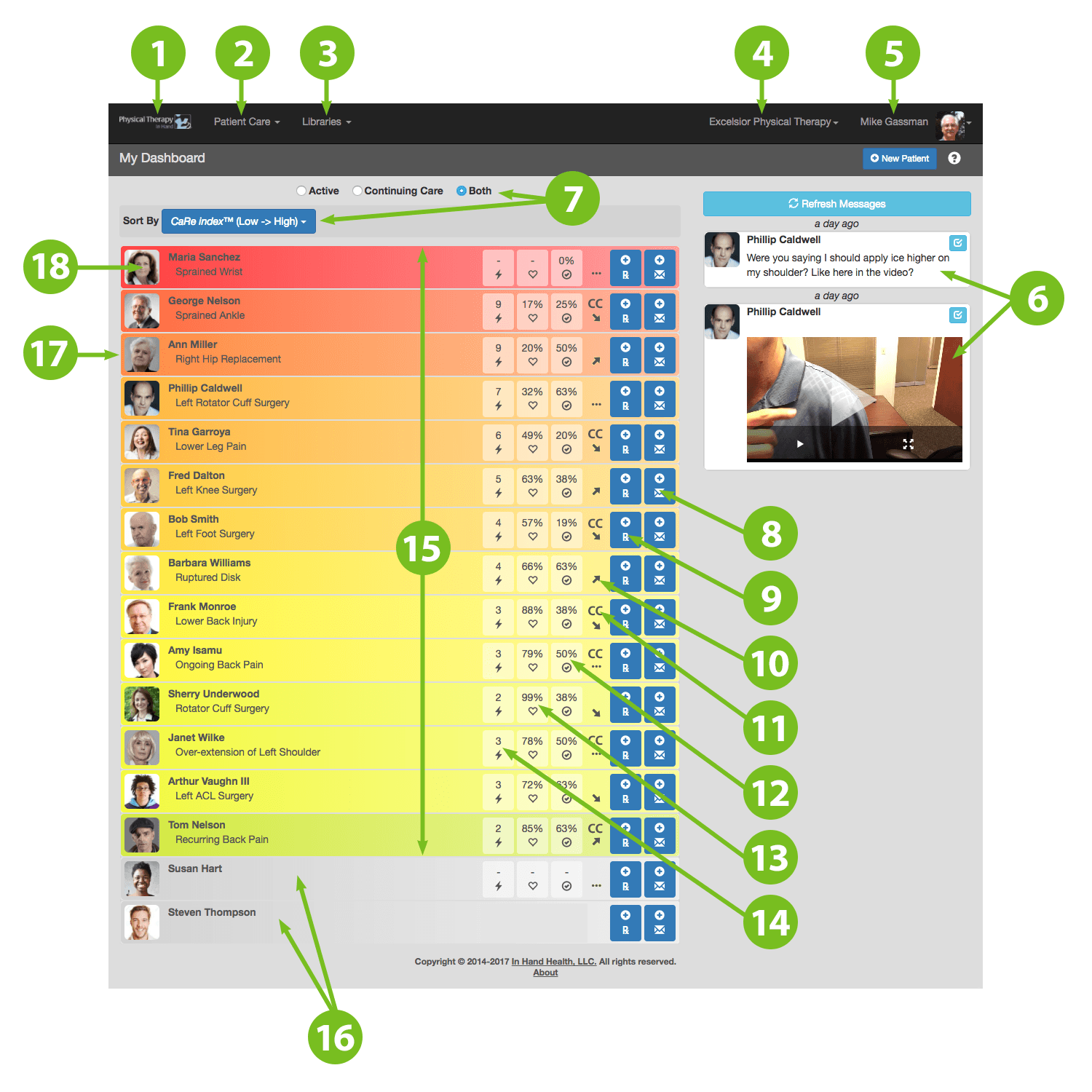
- PTIH Logo: Click this anywhere in the application to return to the dashboard.
- Patient Care: Jump to your dashboard. View all patients in the clinic. **
- Libraries: Manage video exercises, protocols, resources, and exercise templates.
- Clinic Name: Enter clinic contact information. Manage staff roles, Continuing Care subscriptions, and licenses for your clinic's PTIH users.
- Username: Manage your account information, change clinics (if applicable), and sign out.
- Messages: Read and respond to the latest securely transmitted messages from your patients that they have sent to you from their In Hand Health Patient Apps. Messages can be text based, images, videos, or voice clips.
- Sorting: These options customize the viewing order of your patients on the dashboard.
- Send/View Messages Shortcut: Click on the Envelope icon to go directly to that patient's Messages tab in his or her record.
- Exercise Prescriptions Shortcut: Click on the Rx icon to go directly to that patient's Prescriptions tab in his or her record.
- Arrows Up or Down: Up or down arrows indicate the trend of the patient's two most recently recorded CaRe Index™ scores.
- CC: A "CC" indicates the patient has a current Continuing Care subscription.
- Check Mark: Patient’s monitored compliance levels after recent workouts.*
- Heart: Patient’s self-reported recovery levels after recent workouts.*
- Lightning Bolt: Patient’s self-reported pain levels during recent workouts.*
- Colored Patient/Episode Boxes: Background colors are representative of each patient’s CaRe Index™ score. Red and orange backgrounds indicate low CaRe Index™ scores and patients who might need attention. Green and yellows indicate high CaRe Index™ scores and patients who are likely progressing well.
- Gray Patient/Episode Boxes: Gray boxes with dashes for the Check Mark, Heart, and Lightning Bolt categories are patients who have not signed into the In Hand Health Patient App yet. An ellipsis by these patients means a home exercise program (aka Prescription) has been issued; no ellipsis means the patient is awaiting his or her first Prescription. Solid gray boxes without the Check Mark, Heart, and Lightning Bolt categories indicate Paper Only Patients. (See also Charts: Overview and Descriptions) ***
- Patient/Episode Boxes: Patients are listed along with each active episode of care in PTIH. That means some patients may be listed more than once depending on their active number of episodes.
- Patient Profile Image: A profile image puts a face with the patient’s name and episode.
* A dash ("-") in the Heart (patient-reported recovery level) or Lightning Bolt (patient-reported pain level) means no data has been recorded for this patient in these areas. A dash may also appear in the Check Mark field, which indicates the patient has not exercised yet or the patient has not passed the first 24 hours of using the In Hand Health Patient App when compliance data is first reported.
** Patients who have not subscribed to Continuing Care and have no open episodes are not presented on the Patient Dashboard and can be found in the Inactive patient list instead. Go to the Patient Care | All Patients menu and select the Inactive radio button to locate that patient.
*** If a patient does not have an open episode of care for a current condition but is an active Continuing Care subscriber, he or she will be placed on the dashboard with an automatically created "Continuing Care" episode.