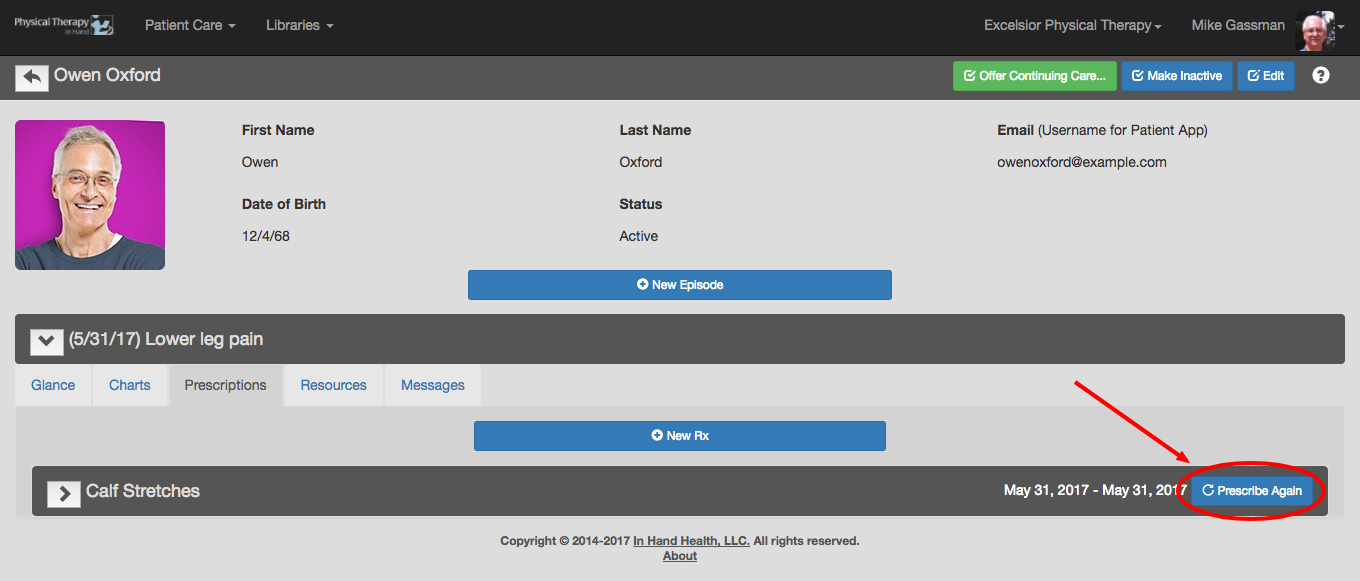
- Click on a patient’s Prescriptions tab within an open episode of care.
- Review a Prescription by clicking on the gray arrow next to the Prescription’s name.
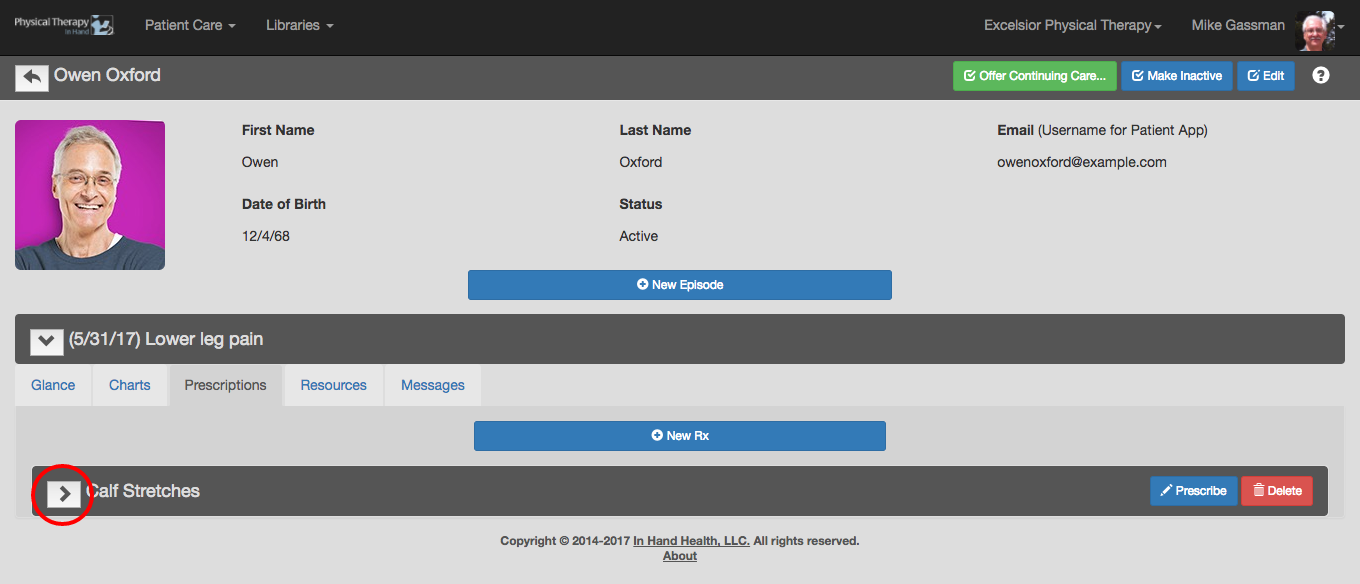
- If it has not previously been sent to a patient, you can modify the Prescription by clicking the blue Edit button (See Prescriptions: Editing Exercises) or remove it by clicking the red Delete button.
- If OK, click the blue Prescribe button. The prescription is automatically delivered to your patient’s In Hand Health Patient App. NOTE: The Prescription is no longer editable once it has been prescribed so be sure you have all details finalized before proceeding.
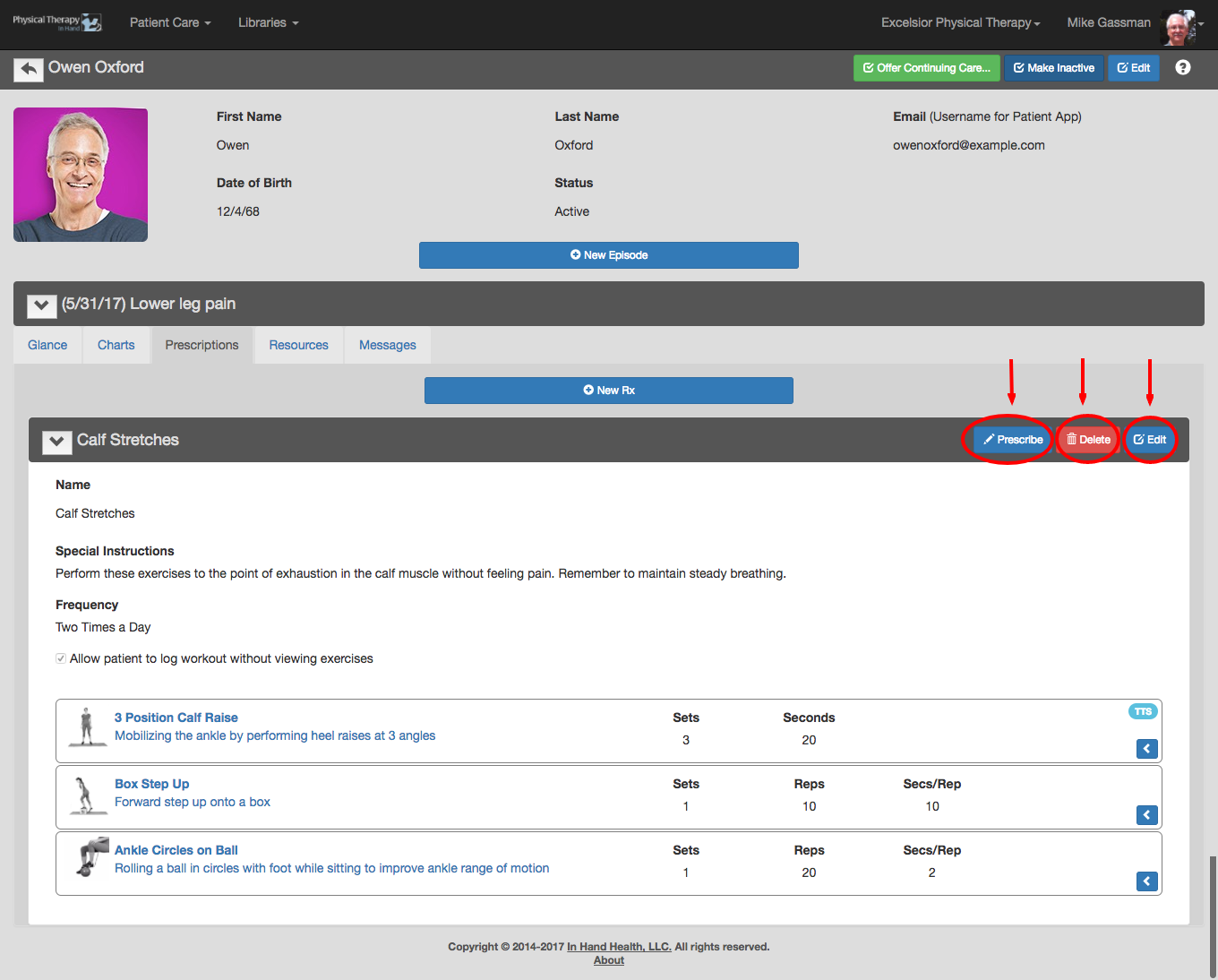
- Print: Once prescribed, click the blue Print button to send the prescription to a network printer or PDF writer (if available) on your computer.
- Expire: A prescribed Prescription remains active until you click the red Expire button, which immediately removes the prescription from the patient’s In Hand Health App and moves it to the patient’s prescription history in PTIH.
- Prescribe Again: If the new Prescription for a patient will be very similar to the last one or an earlier one, you can save some time by clicking or tapping the blue Prescribe Again button. This action will put the Prescription into edit mode, where you can make changes and re-send to the patient’s In Hand Health Mobile App. NOTE: Prescribe Again also expires the prescription if it is active. It will be removed from the patient’s In Hand Health Patient App and moved to the patient’s history in PTIH immediately.
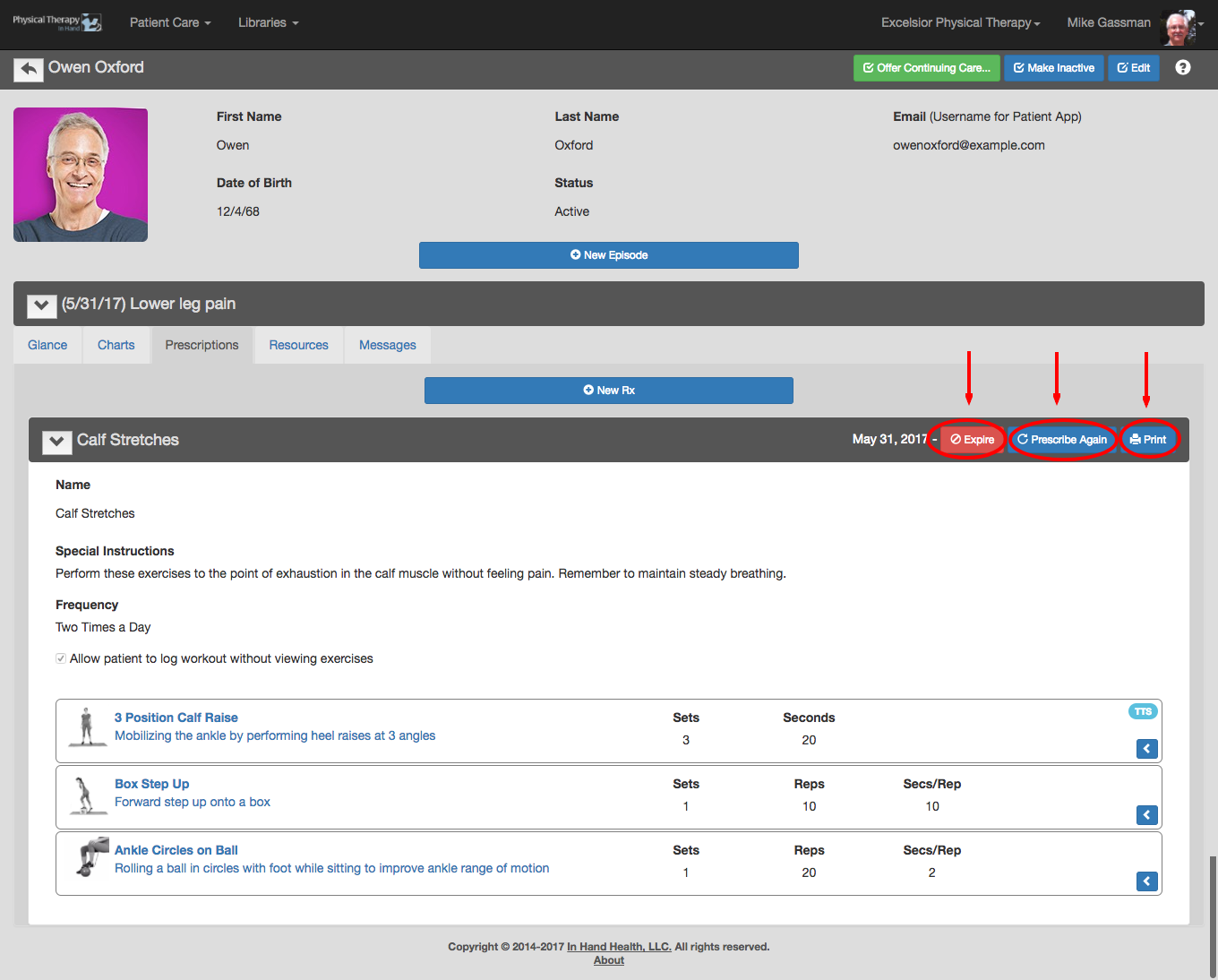
- Expired prescriptions are displayed in the patient’s Prescription list with a beginning and ending date. If necessary, you can re-send or modify an expired prescription with the blue Prescribe Again (see description above) button.