PTIH recognizes users enrolled in the system by username (email address) and can assign a single user to multiple clinics.
For instance, if your PT practice has a North and a South location, you might want to keep the patients separated in PTIH by creating two PTIH accounts. If so, you can allow certain Staff members (e.g. the therapists who see patients in both locations) to join both PTIH clinics.
- For this to work, create a new PTIH account for each location with distinct names (e.g. YourClinic North and YourClinic South. See Create A Clinic).
- To give someone from your PT practice access to both PTIH clinics, a Staff member should be created (see Manage Staff: Add Staff Members) in each clinic with the same username (email address).
The Staff member who has been registered in more than one PTIH clinic can sign into PTIH once and switch between clinics by following these steps:
- Open a web browser.
- Visit the following URL: https://clinic.inhandhealth.com
- You can also go to www.inhandhealth.com and click on the Sign In link to access the application.
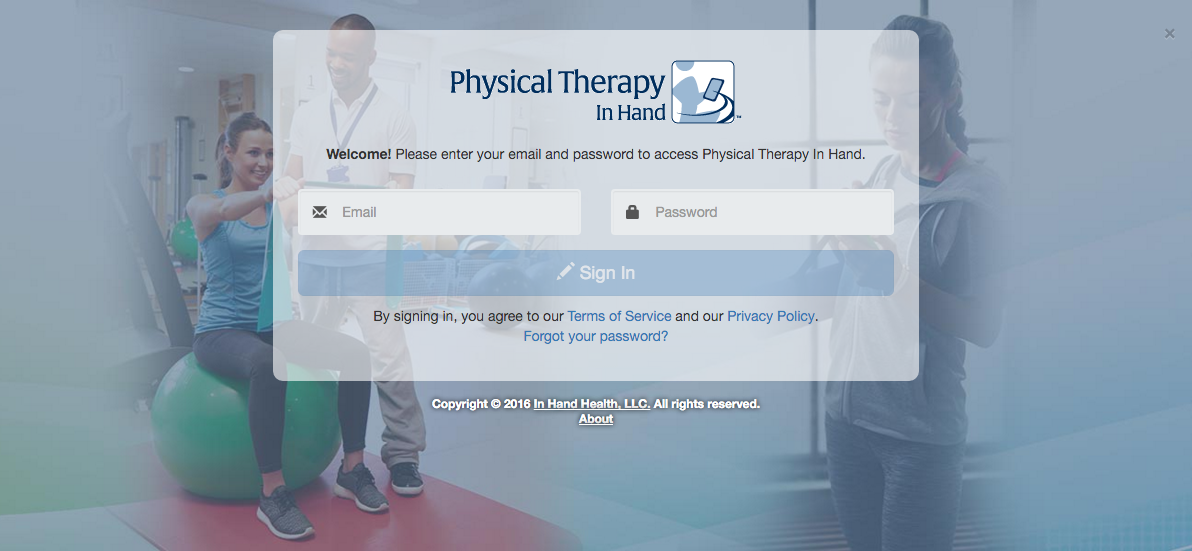
- Sign in using your email address and password.
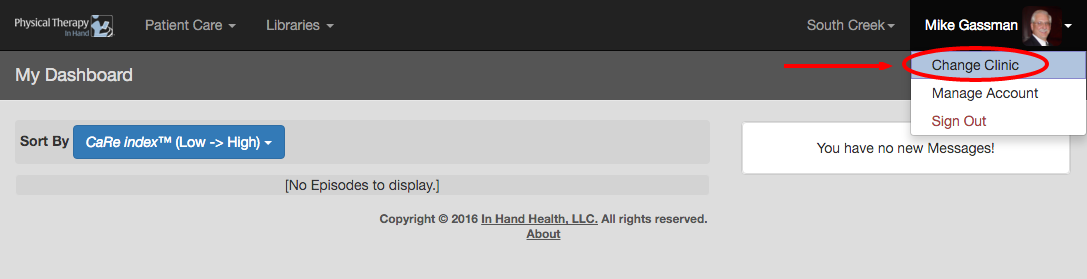
- Click or tap your name in the upper right corner.
- Click or tap Change Clinic.
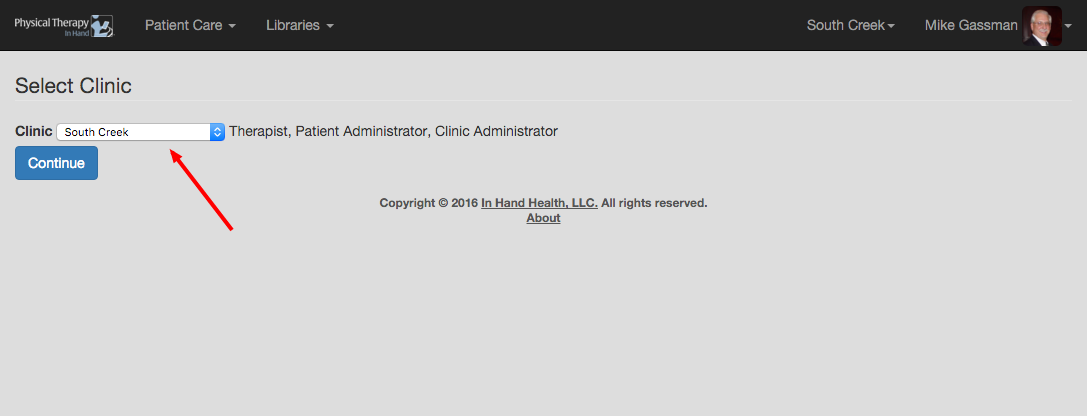
- Change to a different PTIH Clinic by selecting its name from this dropdown menu and clicking the Continue button.