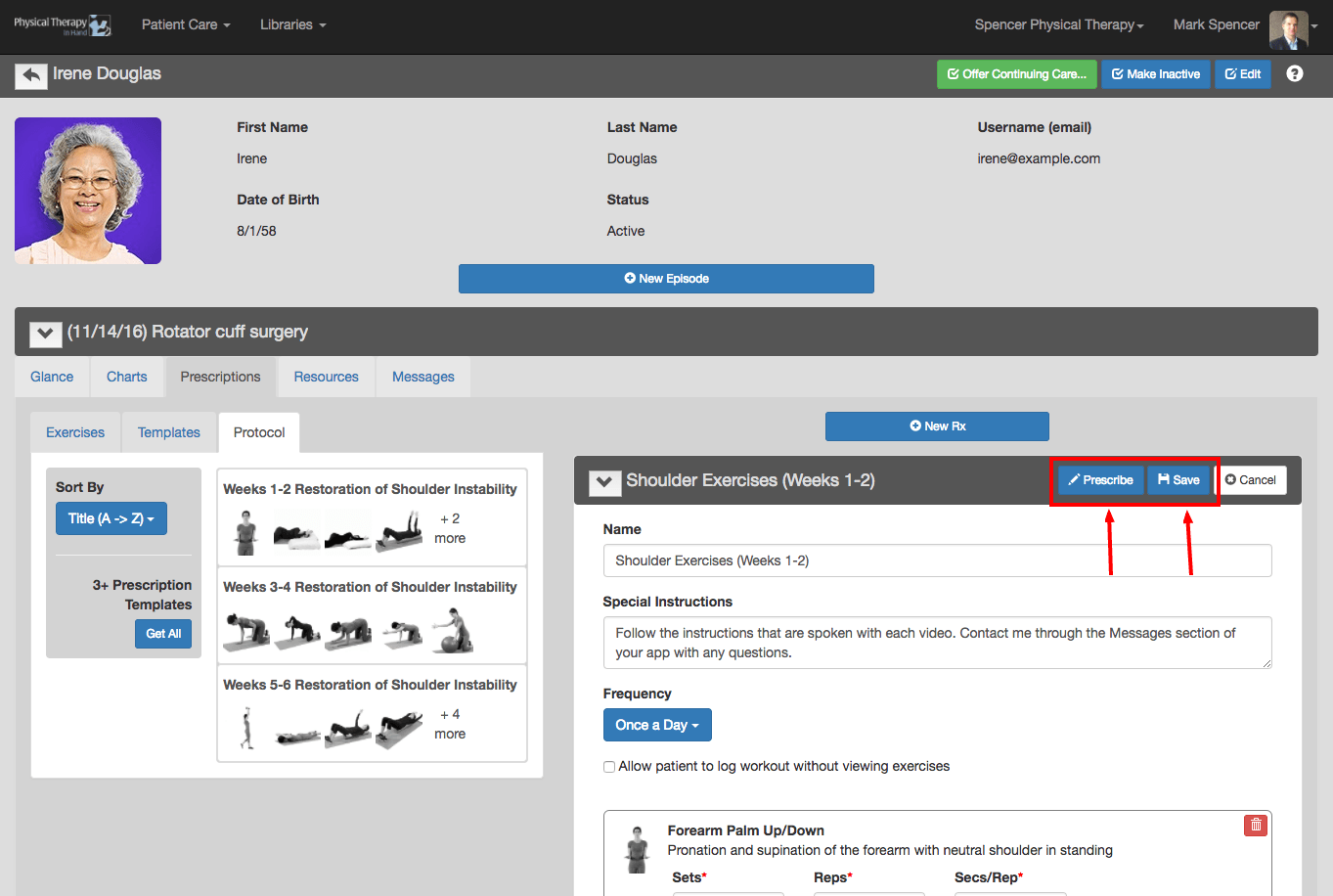
Follow these steps to prescribe a Protocol to a patient:
- Select an existing patient (or create a new patient).
- Create a New Episode or select an existing Episode and click or tap the Edit button. (See Patient At A Glance: View Patient and Episode Information.)
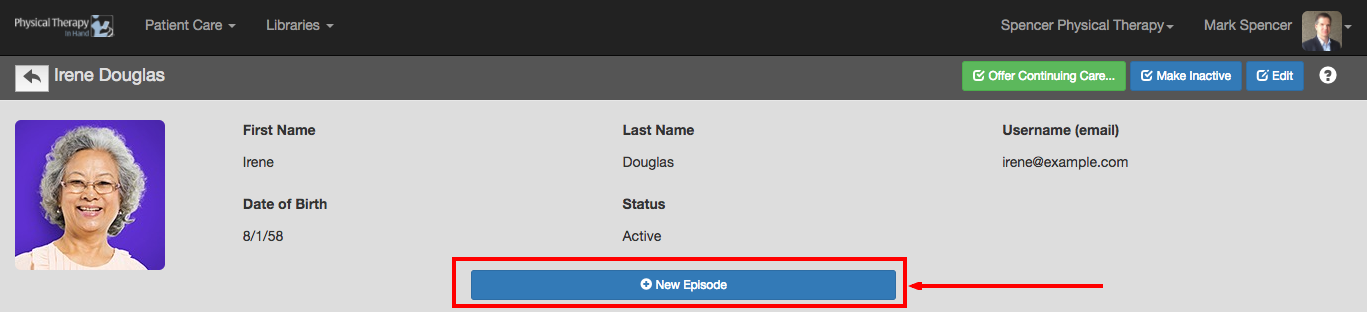
- On the Glance tab of the Episode, complete the Description and Date fields and Assign Therapist(s) selection.
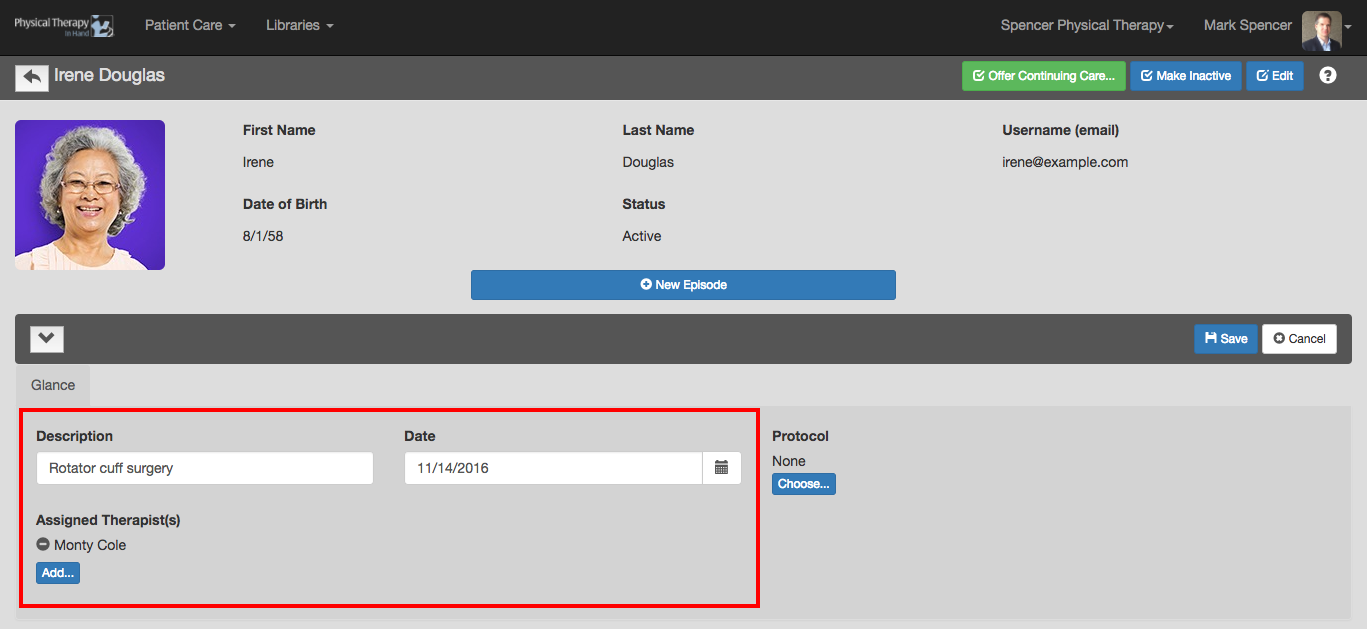
- Click or tap the blue Choose... button under the Protocol heading.
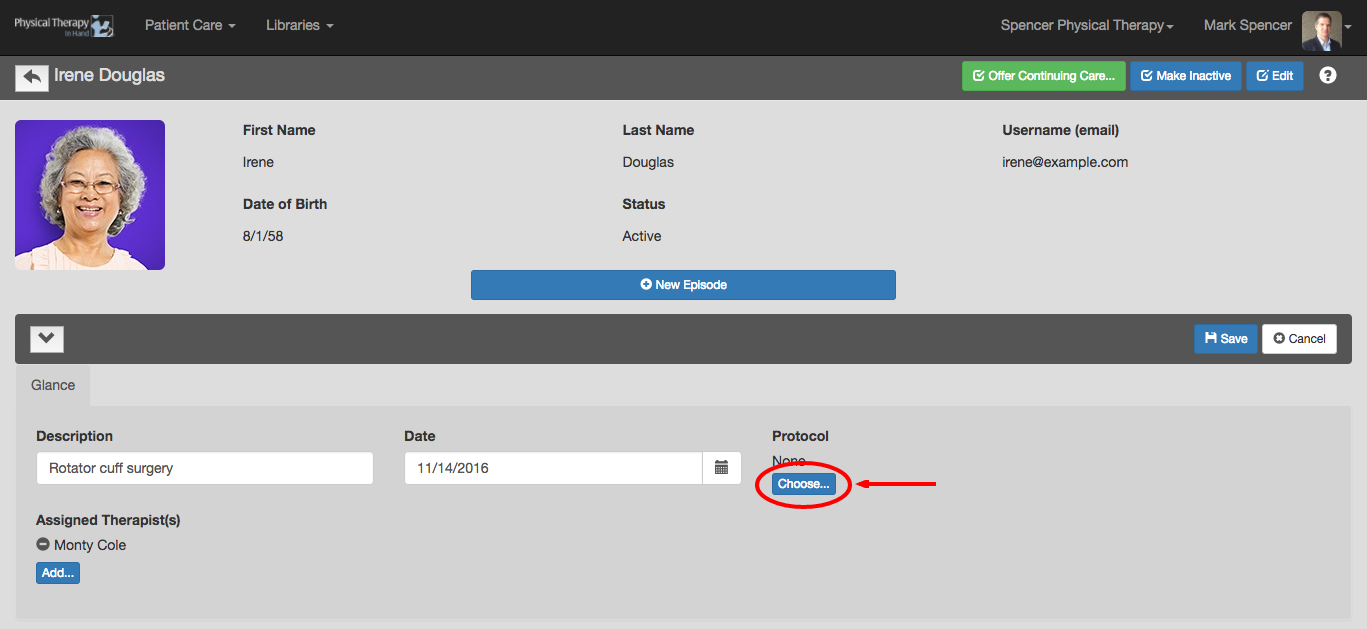
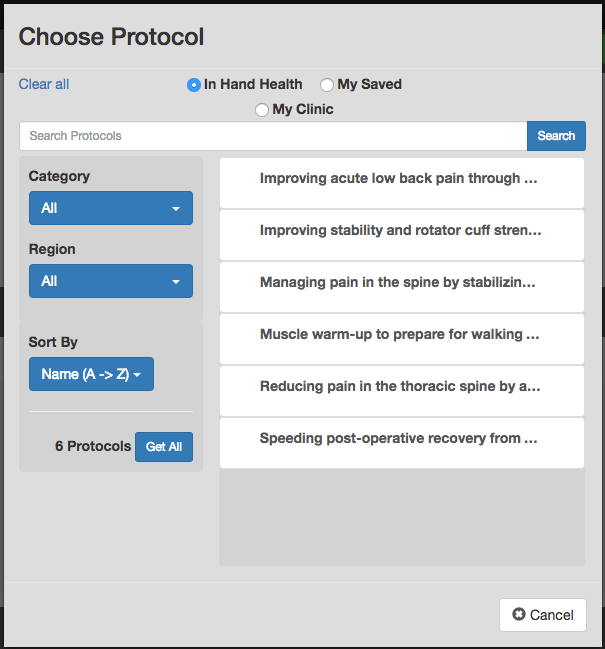
- In the Choose Protocol dialog box, use the In Hand Health, My Saved, and My Clinic radio buttons along with the blue Category, Region, Medical Diagnosis, and Sort By filters to locate a Protocol.
- Select the desired Protocol by clicking or tapping its name. This will save the Protocol to this patient and episode.
- NOTES:
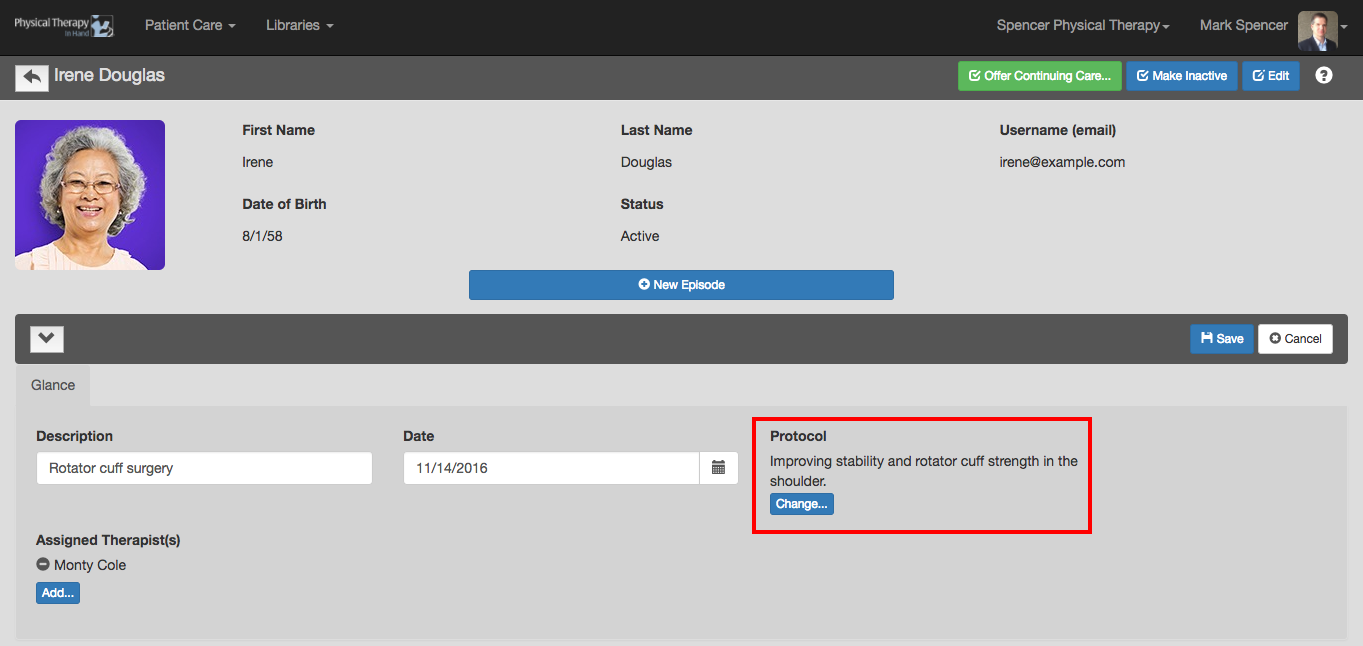
- To change the Protocol later, click the Edit button and then the Change... button under the Protocol. Select a new protocol from the Choose Protocol dialog box.
- To remove the Protocol, you must close the current episode and create a New Episode.
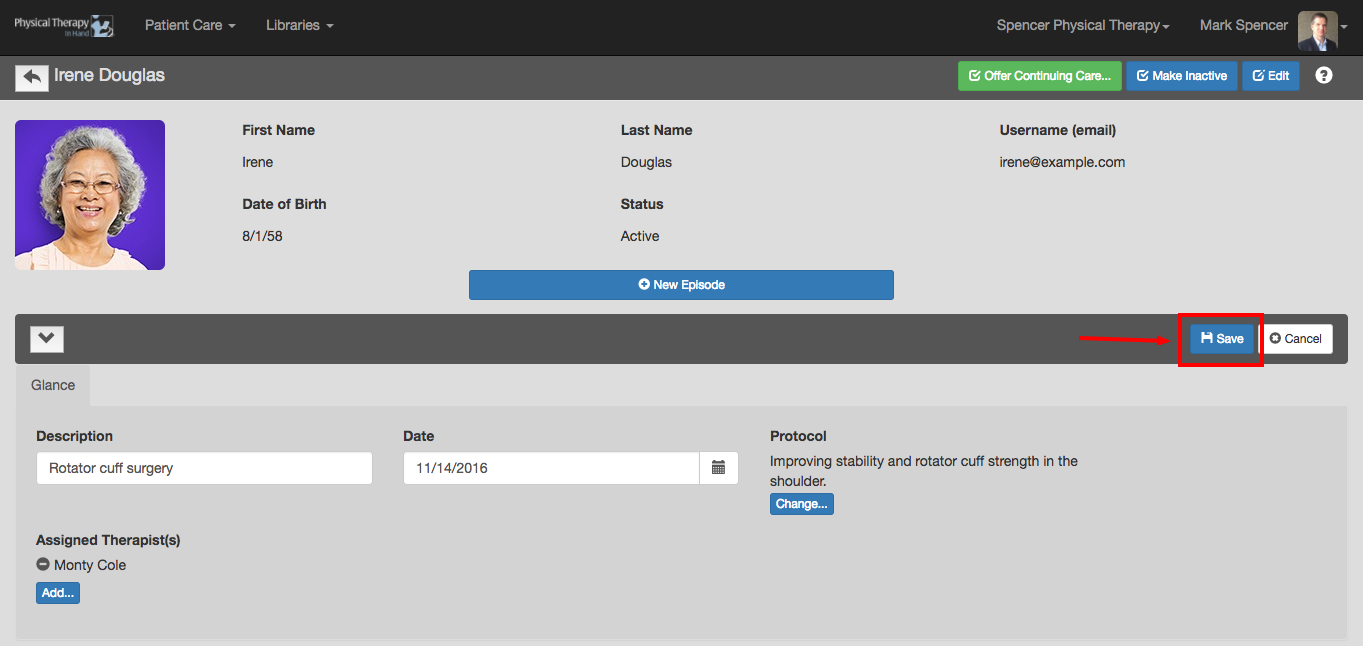
- Click or tap the Save button.
- Click or tap the Prescriptions tab.
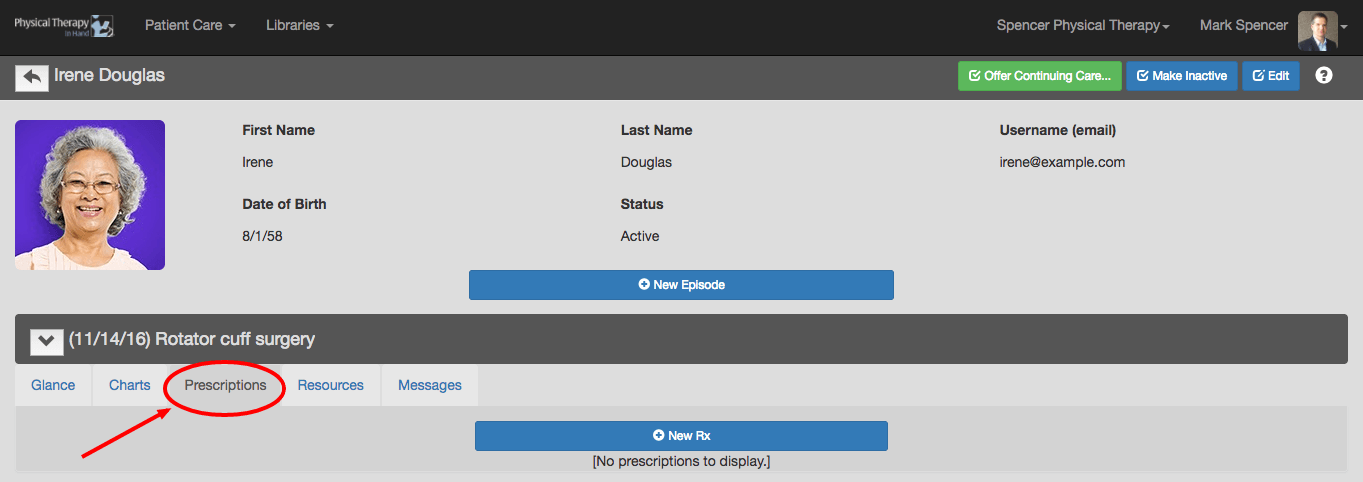
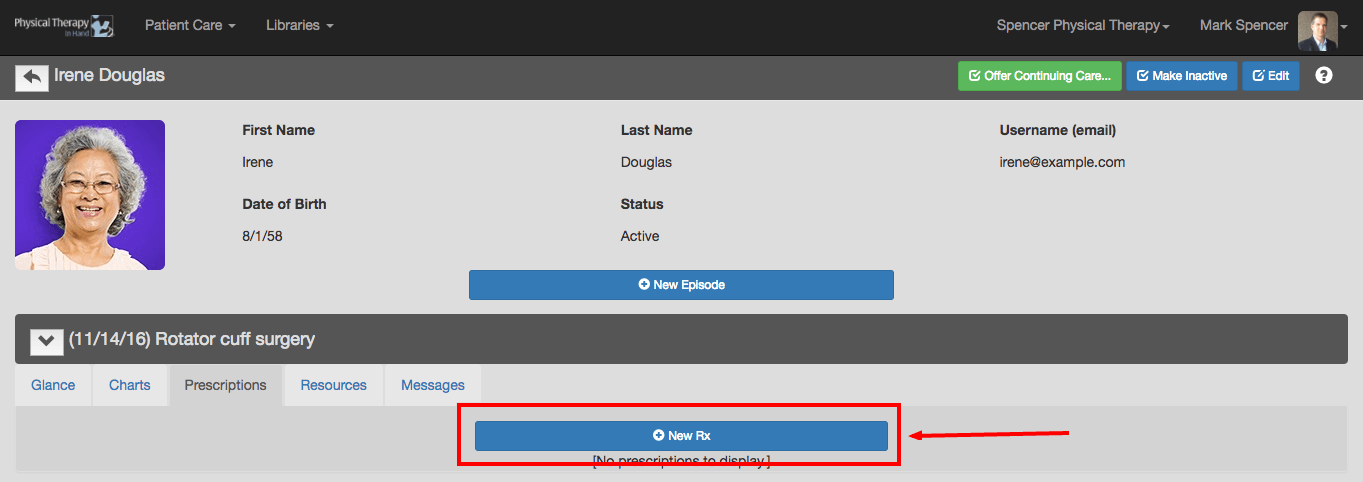
- Click or tap the blue New Rx button.
- Click or tap the Protocol tab. Exercises from the selected Protocol will be visible.
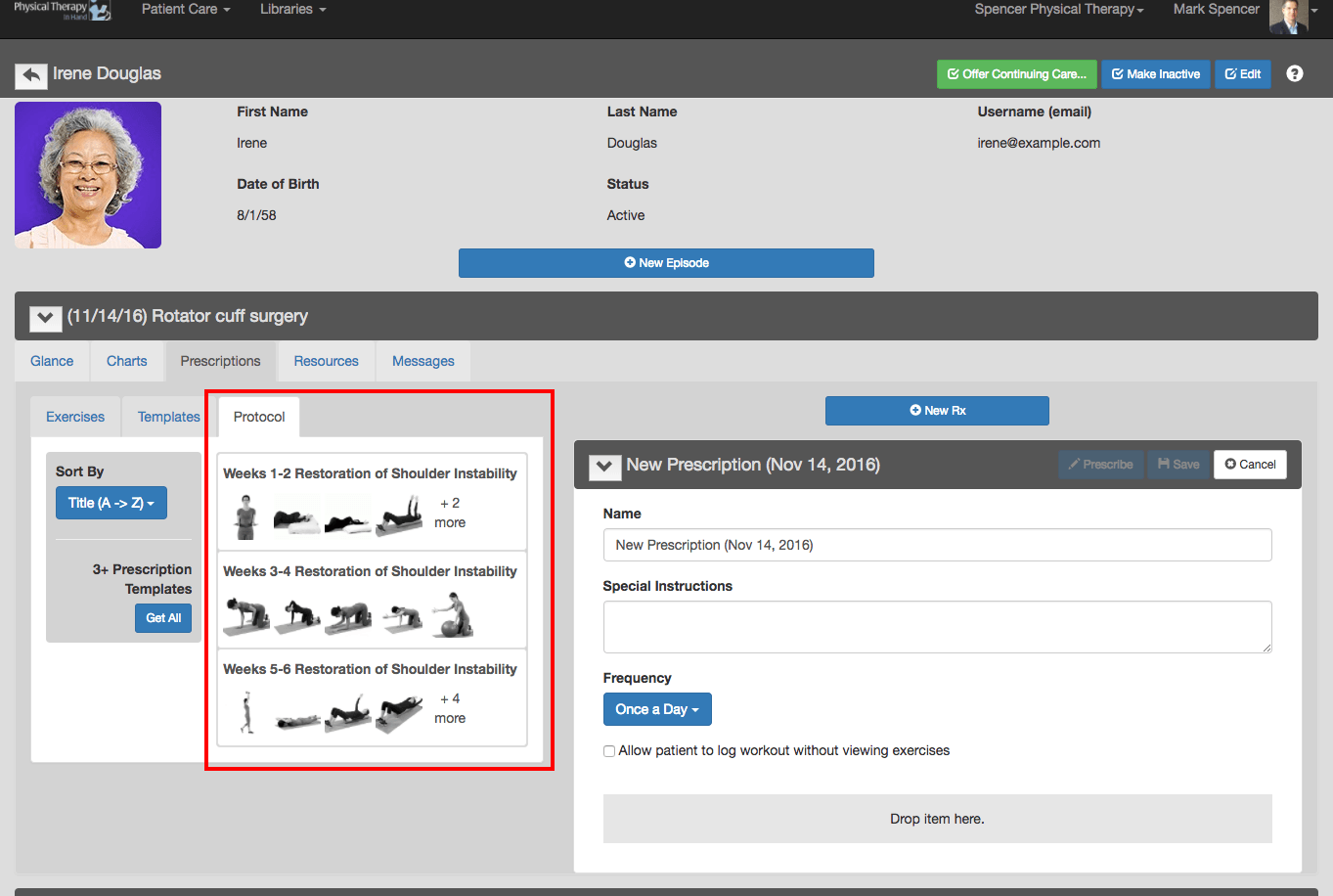
- Drag and drop a week (or set) of the protocol to your prescription template.

- The Protocol includes the Name, Special Instructions, and/or Frequency fields. If desired, you may overwrite this information and enter your own. You can also adjust Exercise details such as sets, reps, and instructions.
- Click or tap Save if you are not ready to send the exercises to the patient on the In Hand Health Patient App.
- Click or tap Prescribe to send the exercises to the patient's In Hand Health Patient App immediately.