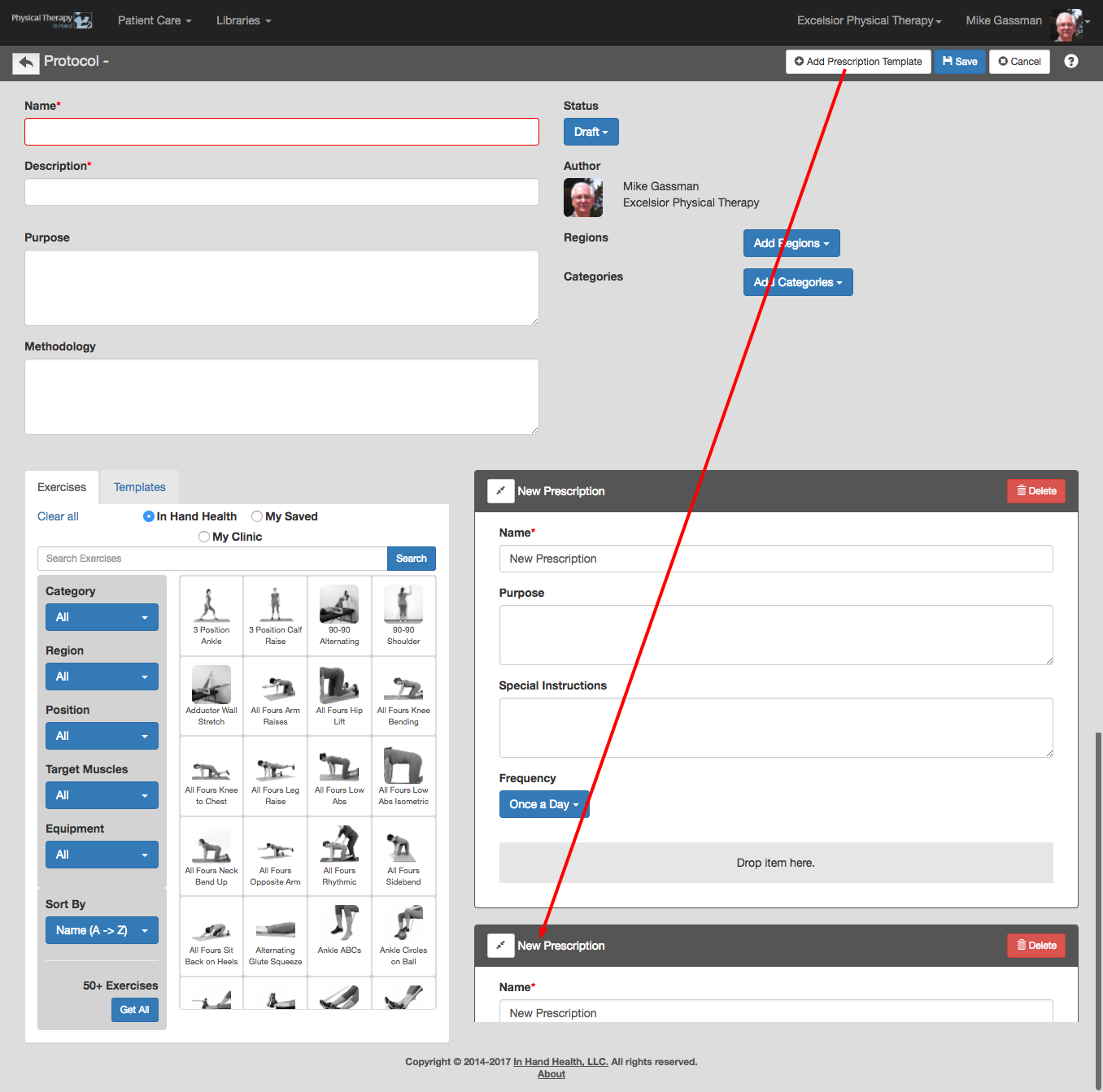
To make a new Protocol in PTIH, follow these steps:
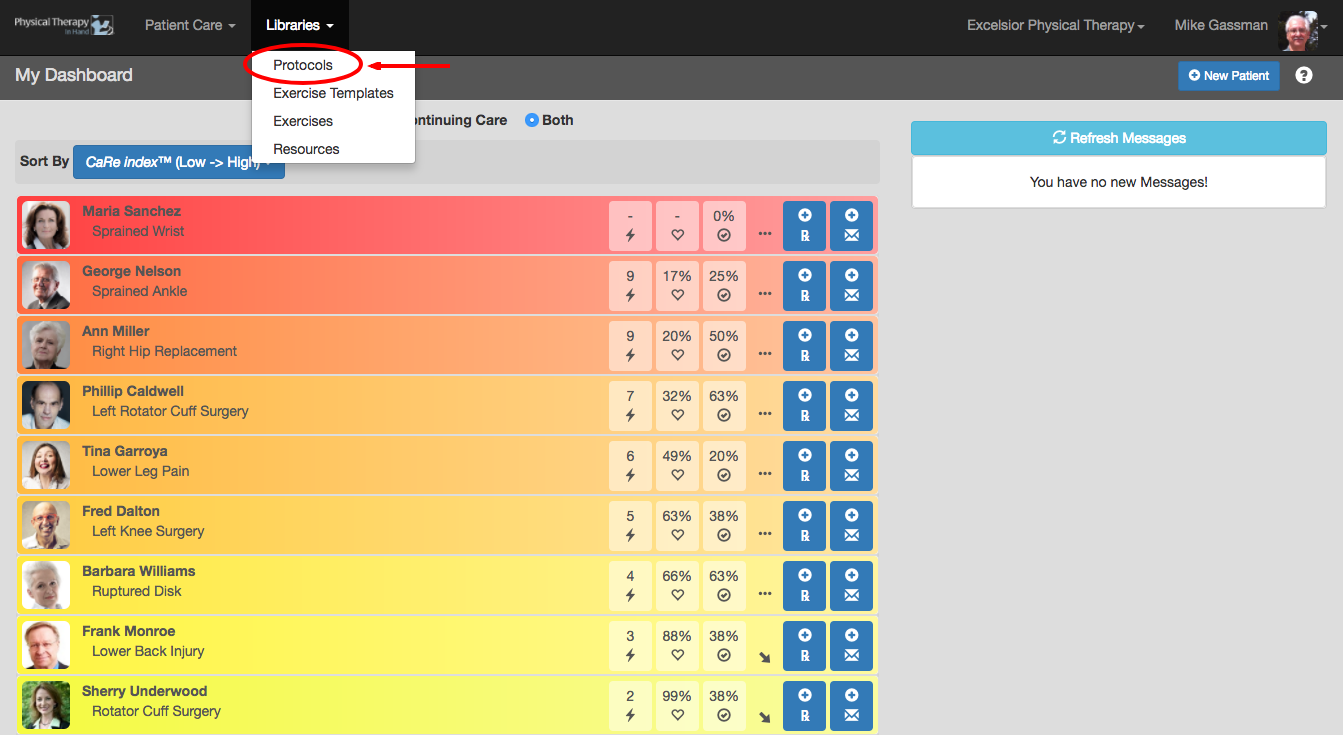
- Select Protocols from the Libraries menu.
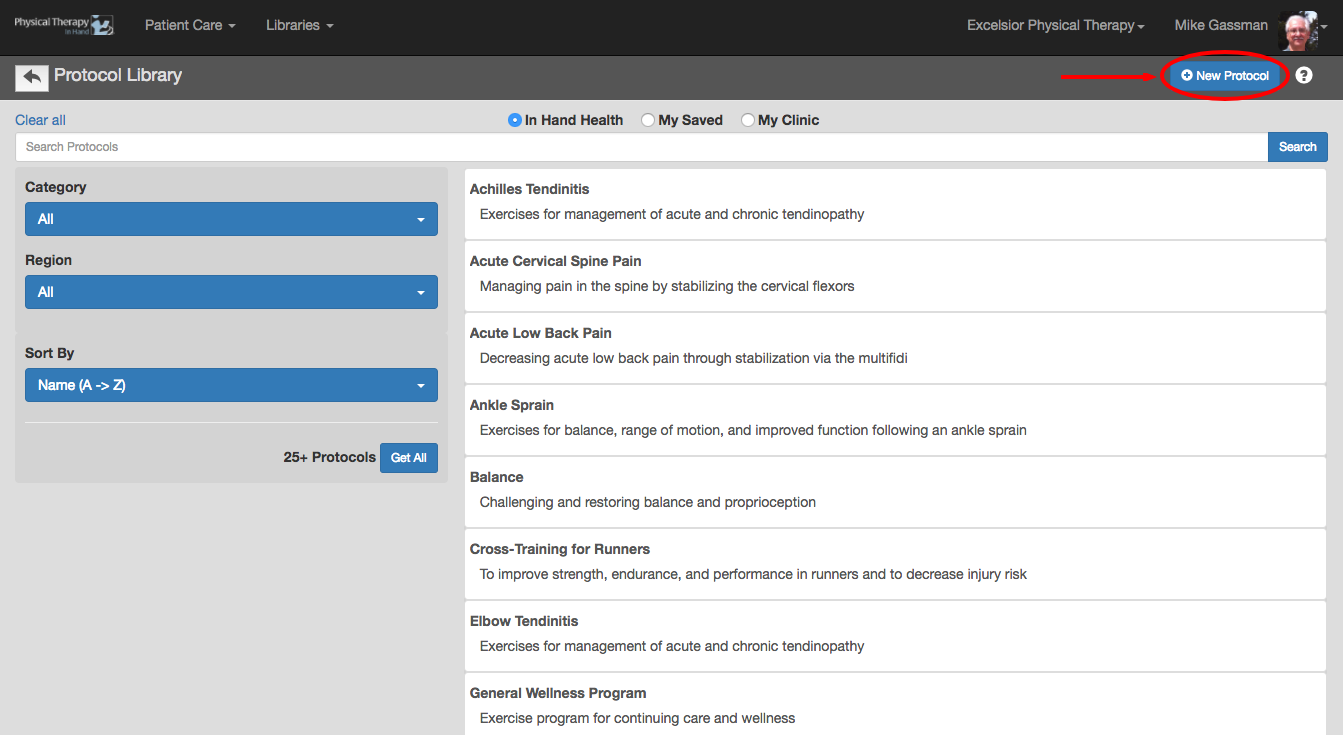
- Click or tap the blue New Protocol button.
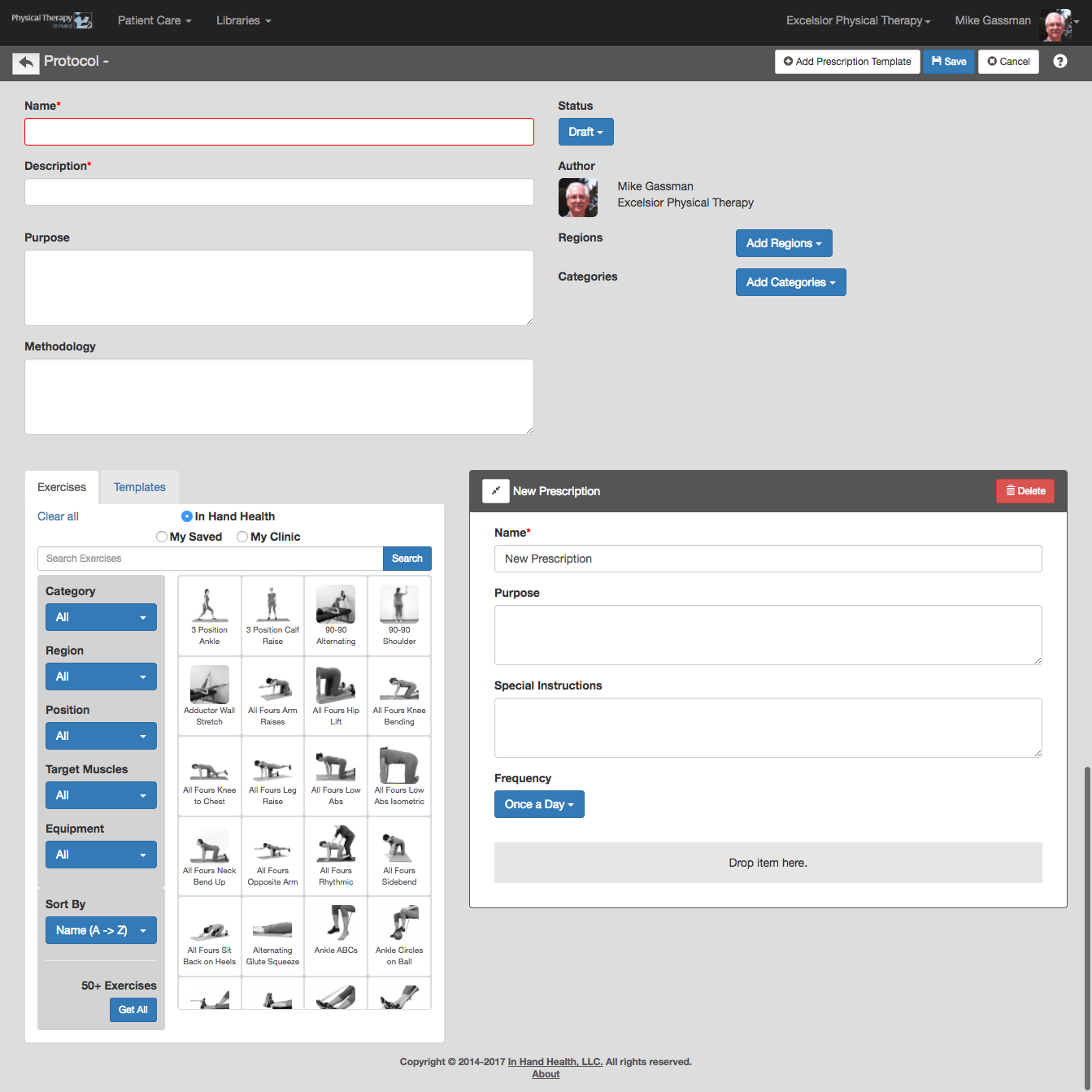
- The New Protocol template provides fields that enable you to build a complete protocol for virtually any injury or condition.
- Note: Your new protocol will not be able to be used in a prescription until it is saved with the Status pulldown menu set to Published.
- Required: You must supply a Name and Description and complete one Prescription Template before the protocol can be saved.
- Optional Information: The New Protocol template includes several other fields (Purpose, Methodology, Regions, and Categories) that are considered optional. However, it is suggested you complete this information to help with Search functions once the protocol is added to your PTIH Clinic.
- Save and Status: Clicking the blue Save button with the Status pulldown menu set to Draft saves your protocol to the My Saved and My Clinic sections of your Protocols section.
- Adding Exercises to a Prescription Template: Exercises are added to a protocol in the same manner as they are added to a prescription. See the Adding Exercises, the Locating Exercises, and the Prescribing, Expiring, Printing, and Prescribing Again sections in Prescriptions for more information.
- Adding/Deleting Prescription Templates: The Add Prescription Template button places a new blank Prescription Template below the last one in the list. Delete extra Prescription Templates by tapping or clicking the red Delete button on each template.